How to Change Your Password
June 20, 2026 · Updated
You can update your password at any time through your account settings. Changing your password regularly helps keep your account secure.
Before You Begin
Make sure you know your current password, as it is required to create a new one. If you've forgotten your current password, see: How to Reset Your Tapstitch Password
Step 1: Log In to Your Account
Visit tapstitch.com and sign in to your account.

Step 2: Open Account Settings
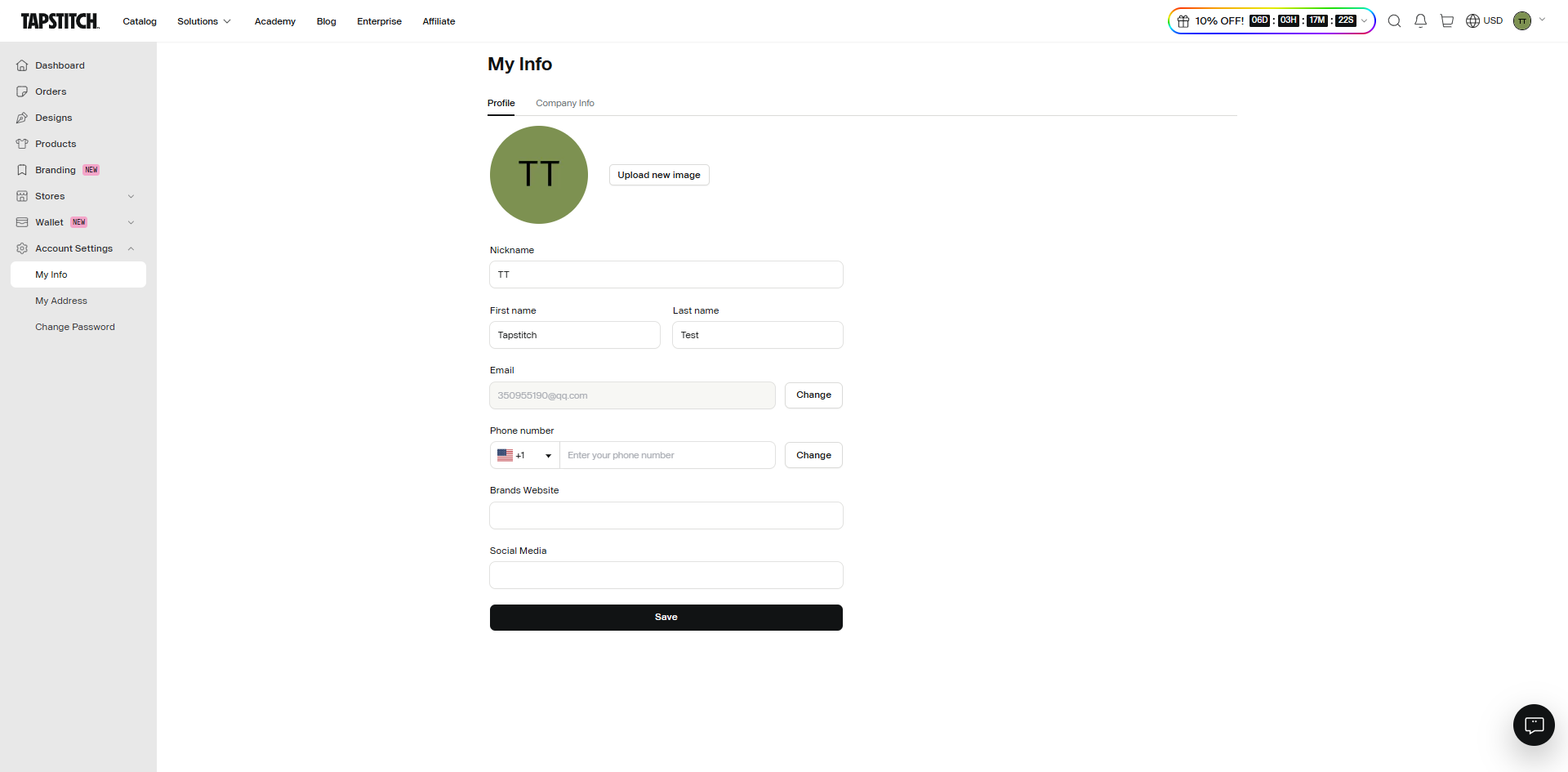
From the left-hand navigation menu, click Account Settings.
Step 3: Select "Change Password"
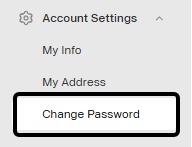
Within Account Settings, click Change Password.
Step 4: Enter Your Password Information
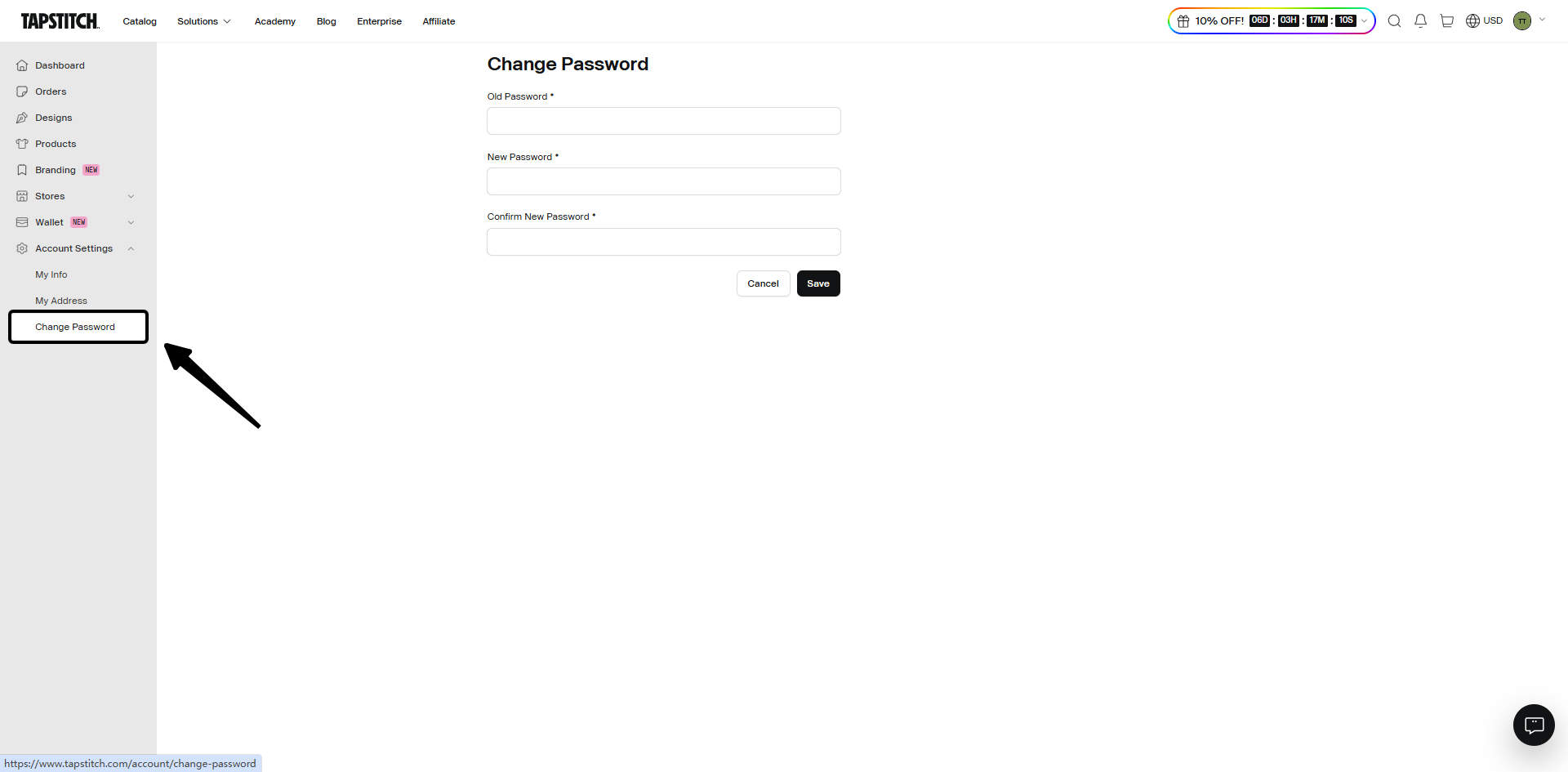
Complete the required fields:
- Old Password
- New Password
- Confirm New Password
Step 5: Save Your Changes
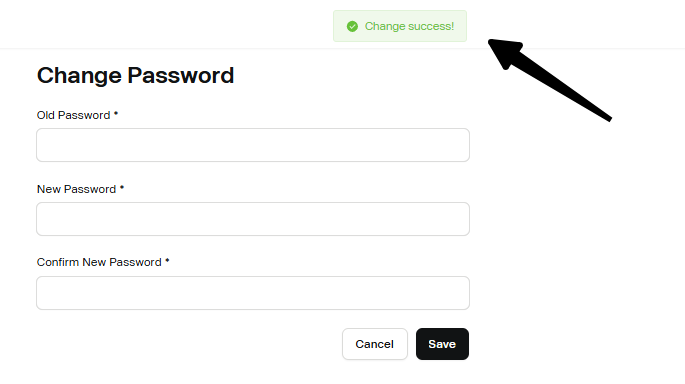
Click Save to update your password.
Your new password will take effect immediately and can be used the next time you log in.
Password Requirements
For better account security, we recommend creating a password that:
- Contains at least 8 characters
- Includes both uppercase and lowercase letters
- Includes at least one number
- Includes at least one special character
Avoid using easily guessed information such as names, birthdays, or common words.
Troubleshooting
I Don't Remember My Current Password
If you've forgotten your current password, you won't be able to change it from Account Settings. Instead, use the password reset process: How to Reset Your Tapstitch Password
My New Password Isn't Working
Make sure:
- The password was entered correctly.
- There are no extra spaces.
- You are using the updated password, not your previous one.
If you're still unable to log in, try resetting your password.
Need More Help?
If you're experiencing issues updating your password, please contact our Support Team through Live Chat or email us at support@tapstitch.com, and we'll be happy to assist you.
Was this article helpful?
6 found this helpful