Troubleshoot Login Issues
June 19, 2026 · Updated
If you're having trouble logging in to your Tapstitch account, follow the troubleshooting steps below to identify and resolve the issue.
Before You Begin
Make sure:
- You're using the correct email address associated with your Tapstitch account.
- Your password is entered correctly.
- Caps Lock is turned off.
- Your internet connection is stable.
If you're still unable to log in, continue with the steps below.
Step 1: Reset Your Password
If you may have forgotten your password, reset it first.
- Go to the Login page.
- Click Forgot Password?
- Follow the instructions sent to your email address.
- Try logging in again with your new password.
For detailed instructions, see: How to Reset Your Tapstitch Password
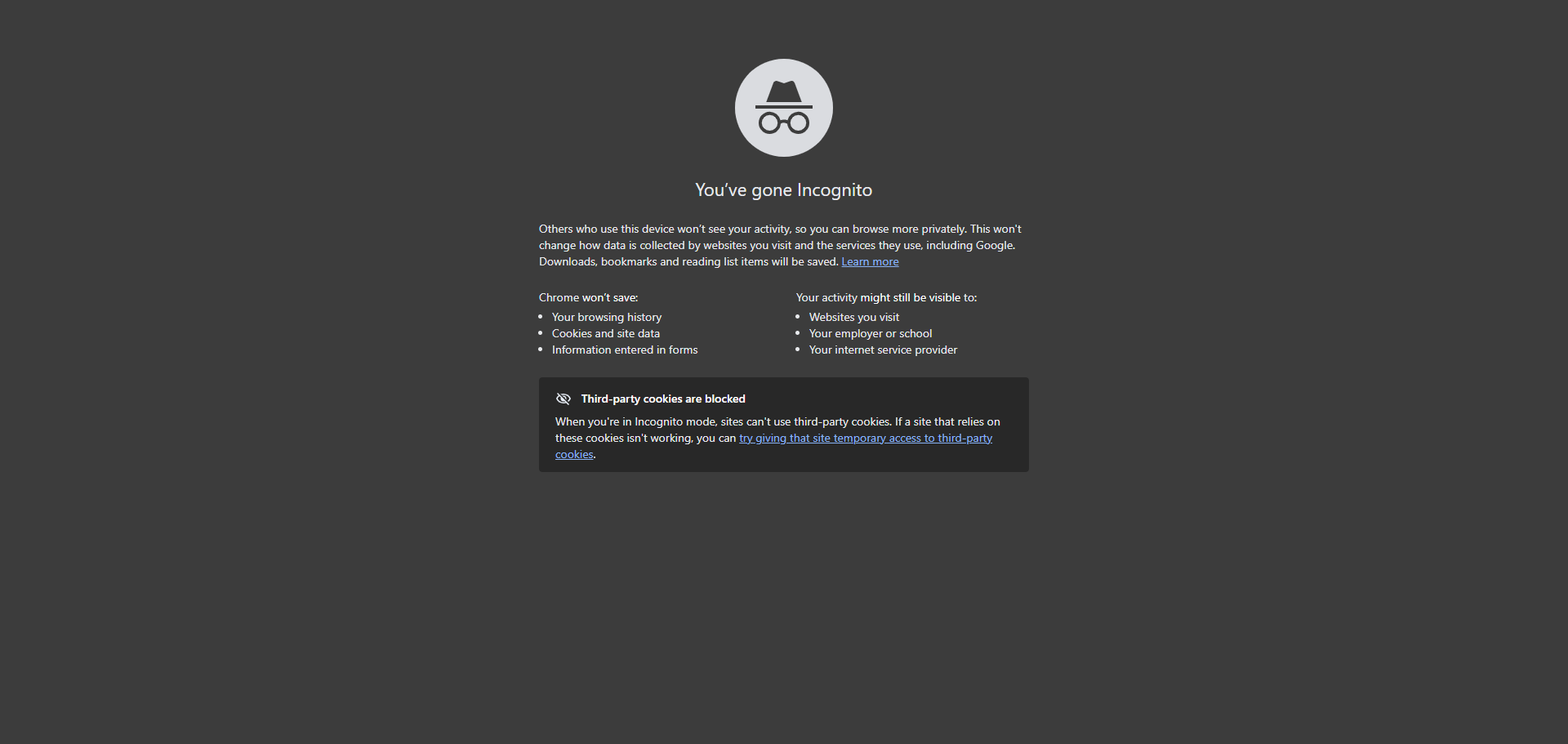
Step 2: Try an Incognito or Private Browser Window
Browser extensions, saved cookies, or cached data can sometimes interfere with the login process. Open a private browsing window and attempt to log in again:
- Chrome: Incognito Window
- Safari: Private Window
- Firefox: Private Browsing Window
- Edge: InPrivate Window
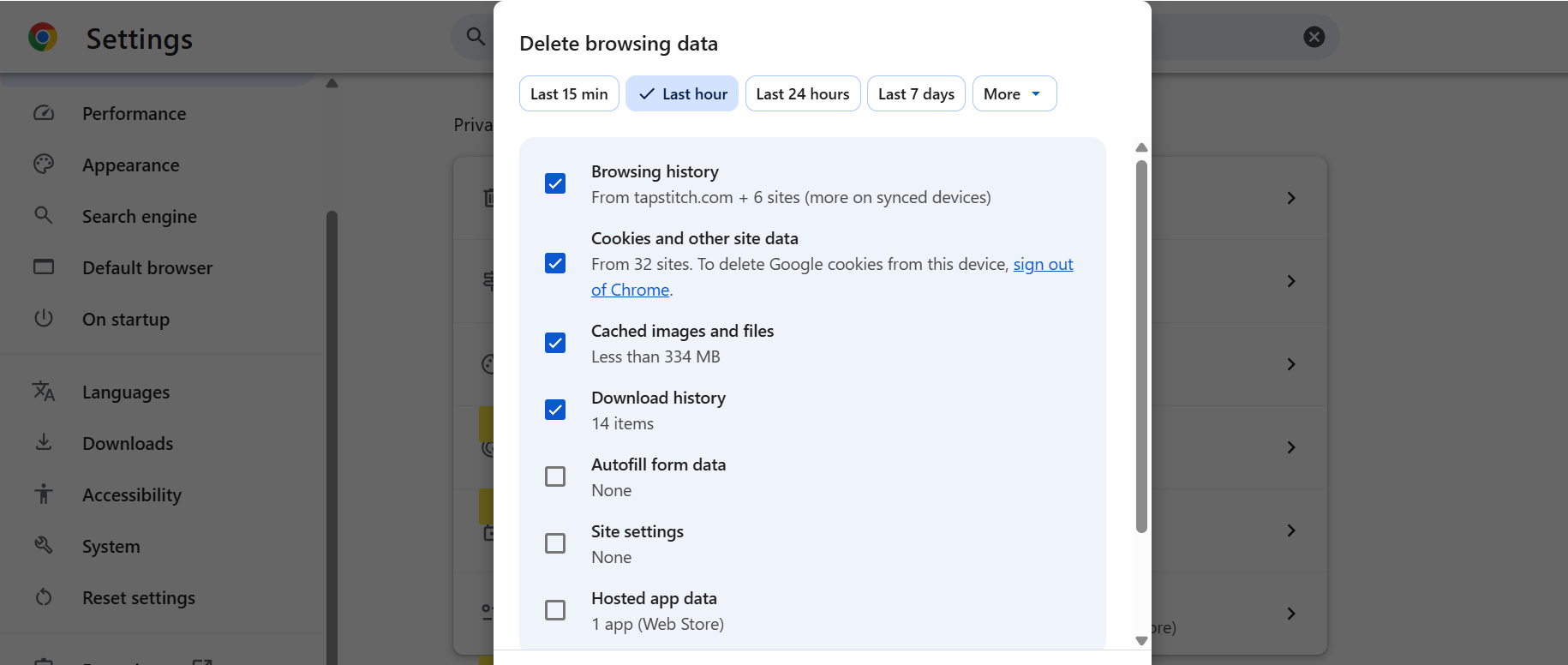
Step 3: Clear Your Browser Cache and Cookies
If login issues persist, clear your browser's cache and cookies, then restart your browser and try again.
Step 4: Try a Different Browser
Some browser-specific settings or extensions may affect login functionality. Try using a different browser, such as:
- Google Chrome
- Mozilla Firefox
- Microsoft Edge
- Safari
Step 5: Try a Different Device
Attempt to log in from another device, such as:
- Mobile phone
- Tablet
- Another computer
This can help determine whether the issue is device-specific.
Step 6: Wait and Try Again Later
Occasionally, temporary network issues or system maintenance may affect login functionality. Wait a few minutes and try logging in again.
Common Login Issues
Incorrect Email or Password
Double-check that:
- Your email address is spelled correctly.
- You're using the correct password.
- There are no extra spaces before or after your login credentials.
Google Login Not Working
If you're signing in with Google:
- Make sure you're using the same Google account used during registration.
- Verify that your Google account is active and accessible.
- Try signing out of Google and signing back in.
Email Verification Not Completed
Newly registered accounts may require email verification before login. If you haven't verified your email address yet, check your inbox for a verification email and complete the verification process.
Contact Support
If you've completed all troubleshooting steps and still can't access your account, please contact our Support Team. To help us investigate the issue more quickly, please provide:
- A screenshot of the error message
- The email address associated with your account
- The browser and device you're using
Our team will review the issue and assist you as soon as possible.
Was this article helpful?
10 found this helpful