How to set up auto payments
September 02, 2025 · Updated
Tapstitch offers an Auto Payments feature to help you streamline your order processing. Once enabled, payments are processed automatically without manual steps after an order is created. This is especially useful for handling large volumes of orders efficiently and without errors.
What are Auto Payments?
Auto Payments allows you to link your credit or debit card to your Tapstitch account. When used in combination with Auto Order Submission, Tapstitch will automatically charge your card and submit the order for fulfillment - no manual action required.
Why use Auto Payments?
Auto Payments are ideal for sellers processing frequent or high-volume orders, saving time and reducing the risk of payment errors. With Auto Payments, you can:
- Link multiple bank cards and manage payment methods easily
- Let the system optimize which card to charge first
- Remove manual payment steps by combining with Auto Order Submission
- Receive email notifications for each successful or failed payment
This feature is ideal for sellers processing frequent or high-volume orders, helping to save time and reduce the risk of errors.
How to add a bank card
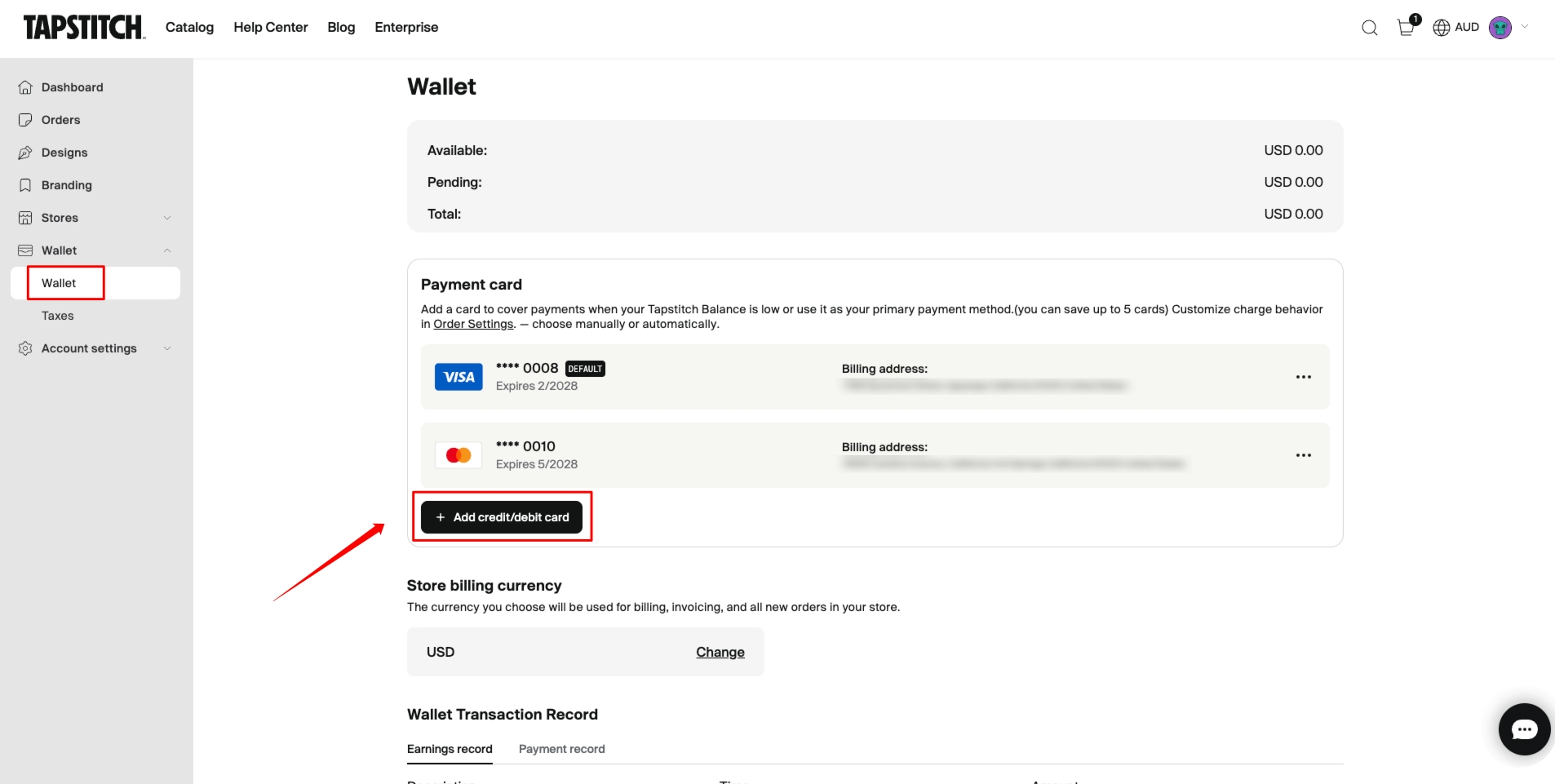
- Go to Account Center > Wallet
- Click "Add Credit/Debit Card"
- Enter the card number, expiration date, CVV, cardholder name, and billing address
- Click "Add Card" to complete the process
You can link up to 5 cards. To replace one, delete the old card first.
How to manage your cards
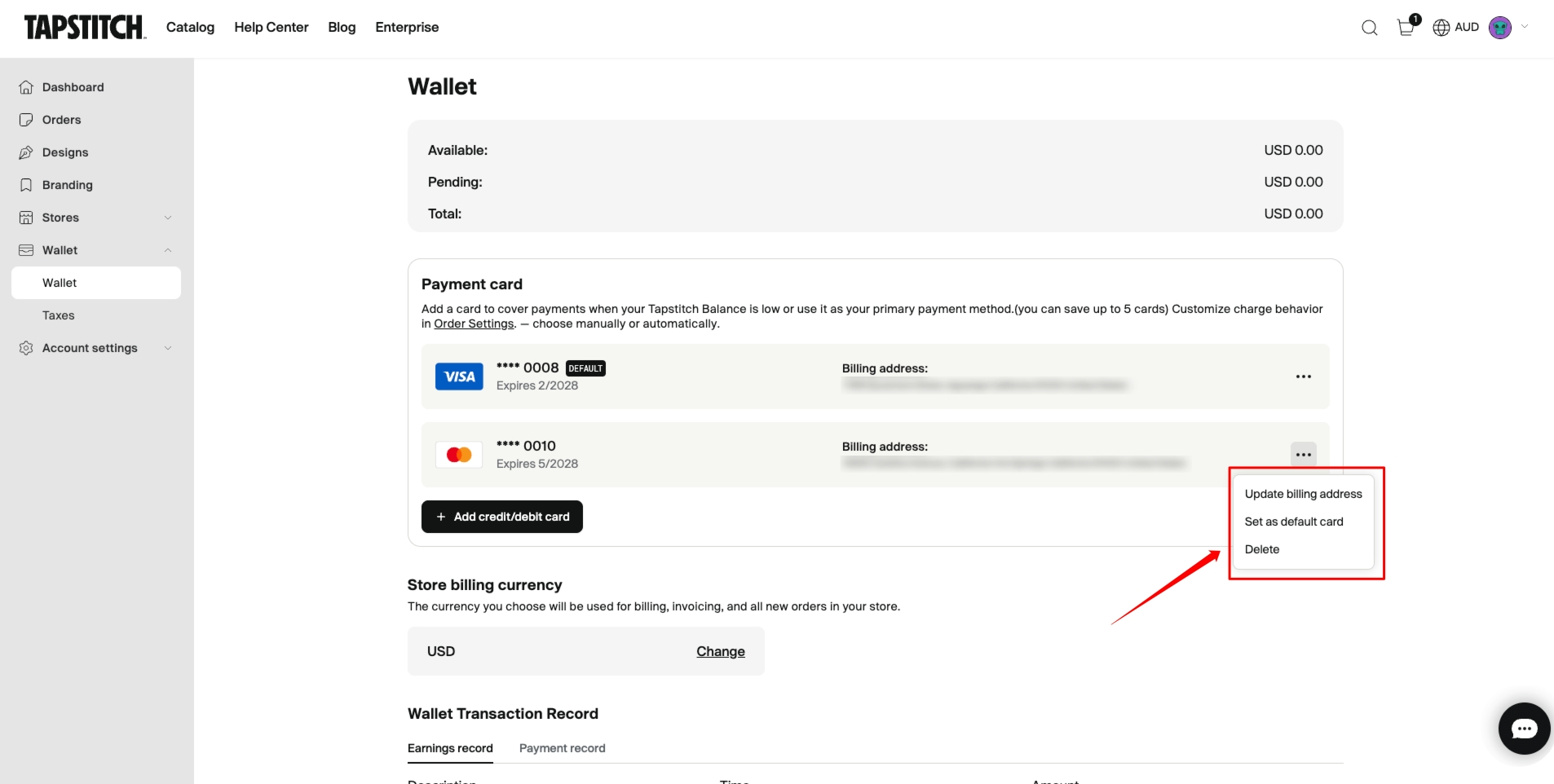 In the Wallet section, you can:
- Set a card as the default payment method
- Update the billing address
- Delete cards you no longer use
The system will attempt to charge your default card first. If that fails, it will automatically try the remaining cards in the order they were added.
Payment priority order
When a new order is submitted automatically, Tapstitch will attempt payment in this order:
- Wallet balance (if sufficient)
- Default bank card
- Other linked cards (in order of addition)
If payment is unsuccessful, the order will not be submitted, and you will receive an email notification.
Notifications
Tapstitch sends email notifications to help you stay updated on your account and payment status:
| Scenario | Notification Type | Description |
| Card Expiring Soon (1st day of expiry month) | Reminder Email | You'll receive a reminder to update your card details to avoid payment issues. |
| Auto Payment Failed | Failure Notification | You'll be notified of the failed transactions, along with the reasons and a link to resolve them. |
| Auto Payment Successful | Billing Confirmation | You'll receive a confirmation email with order details, payment amount, and method. This serves as a payment receipt. |
Usage notes
- Auto Payments must be used with the Auto Order Submission feature. The system only initiates payment when an order is auto-submitted.
- You can enable Auto Submission in Account Center > Store Settings > Order Settings, with options for immediate or scheduled submission.
- If no card is linked, Auto Submission cannot be enabled.
- If all cards are removed, the system reverts to manual submission.
- Payment failures can occur due to expired cards or insufficient funds. Keep your card details and wallet balance up to date.
Need to enable Auto Submission? See: Order Submission Strategy Guide
Frequently Asked Questions
Q: How soon does a card become active after linking?
A: Immediately. The card will be used for the next order.
Q: Can I set different payment cards for each store?
A: Not at this time. Cards are linked at the account level and apply to all stores.
Q: Why didn't my order auto-pay?
A: Check that Auto Submission is enabled and your card is valid, or that your wallet has enough balance.
Need support?
Contact the Tapstitch Support Team via the Help Center.
Was this article helpful?
10 found this helpful