Custom Hangtag Guide
August 20, 2026 · Updated
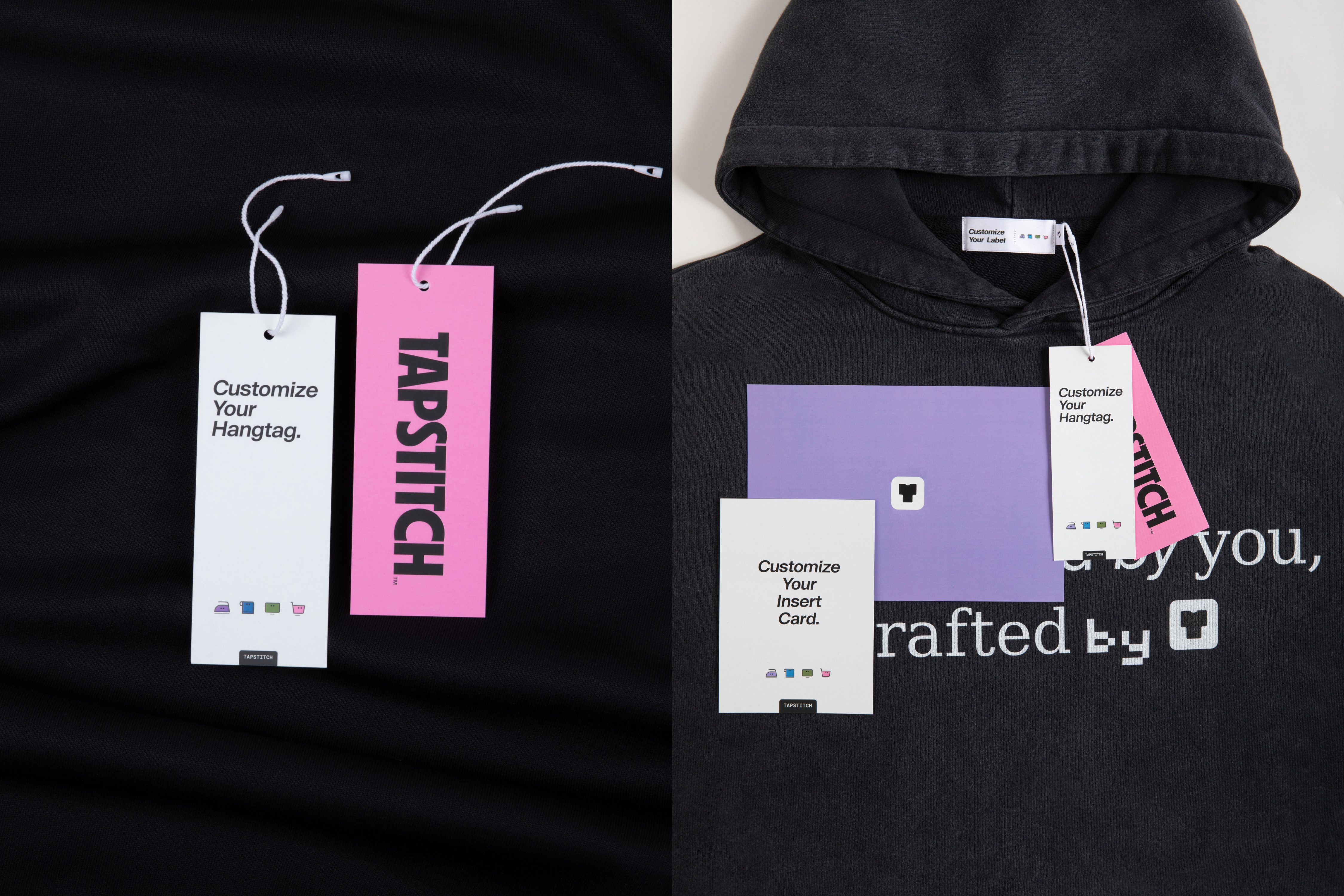
Custom Hangtags allow you to add branded tags to your garments during production, helping ensure a consistent and professional brand presentation upon delivery.
🔍 Service Overview
Hangtags are attached to garments during production and shipped with your items.
Specifications
- Size: 13 × 5 cm (5.1" × 2.0")
- Material: 350gsm premium cardstock
- Finish: Laminated (water and scratch resistant)
- Base color: White
- Printing: Double-sided printing supported
The clean, minimal design works well across all apparel styles.
🎨 How to Create a Hangtag
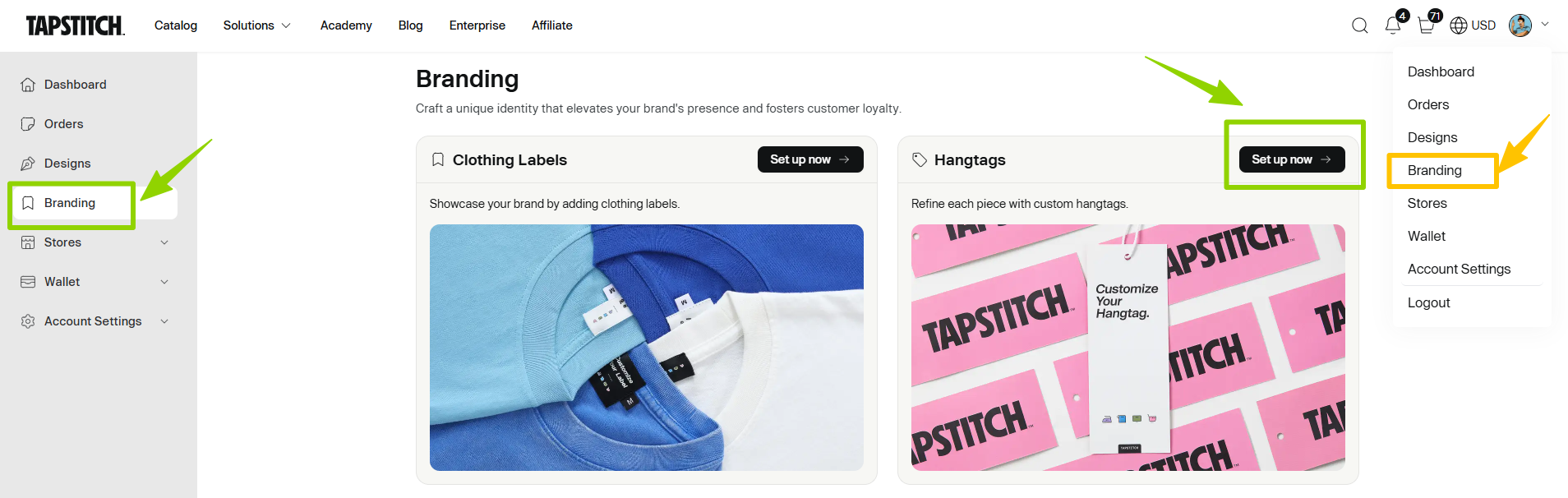
To get started, follow this path: Profile Icon → Branding → Hangtag → Set up now → Add New Hangtag
🖌 Designing Your Hangtag
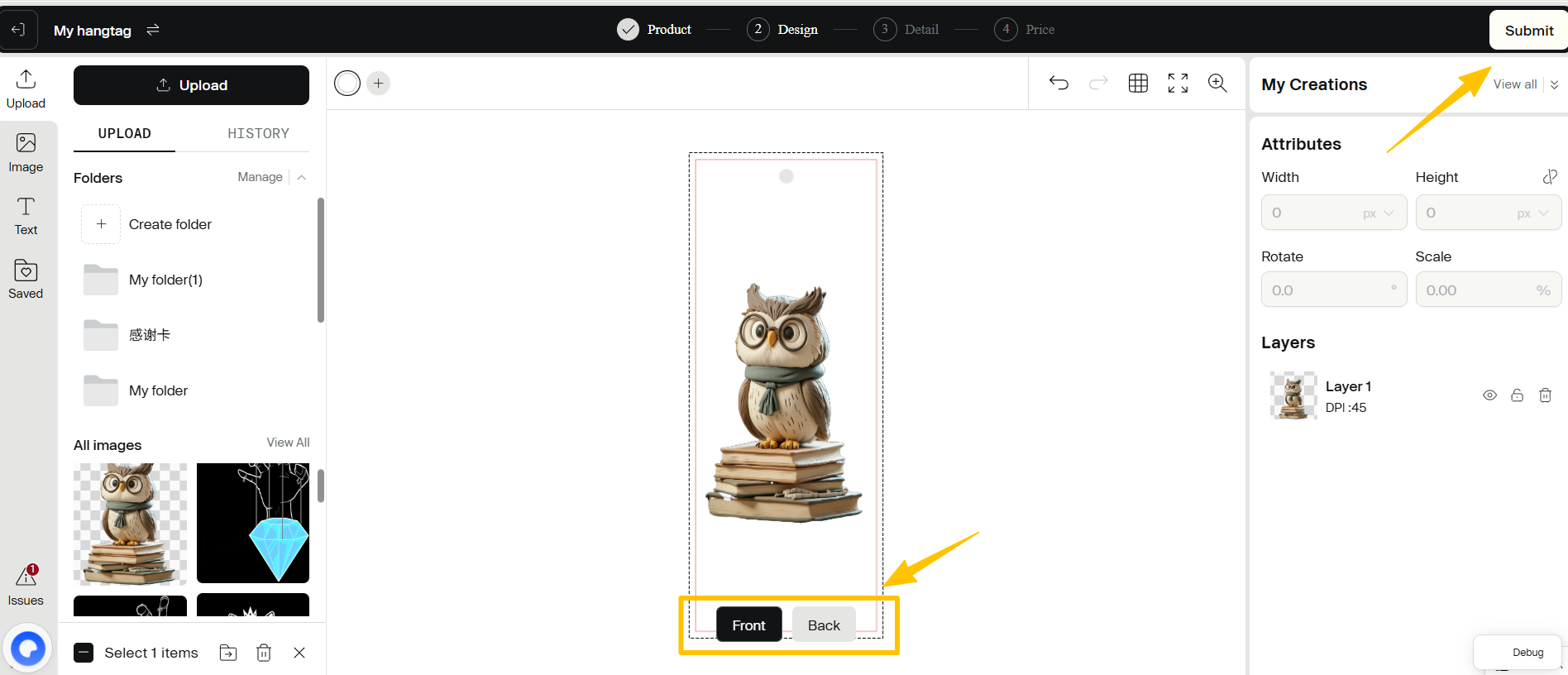
In the design editor, you have several options for customization:
- Design the front side
- Design the back side (optional)
- Upload your own images
- Edit and adjust the design
Once your design is complete, click Submit. A confirmation message will indicate that your design has been saved successfully.
⚠️ Design Guidelines
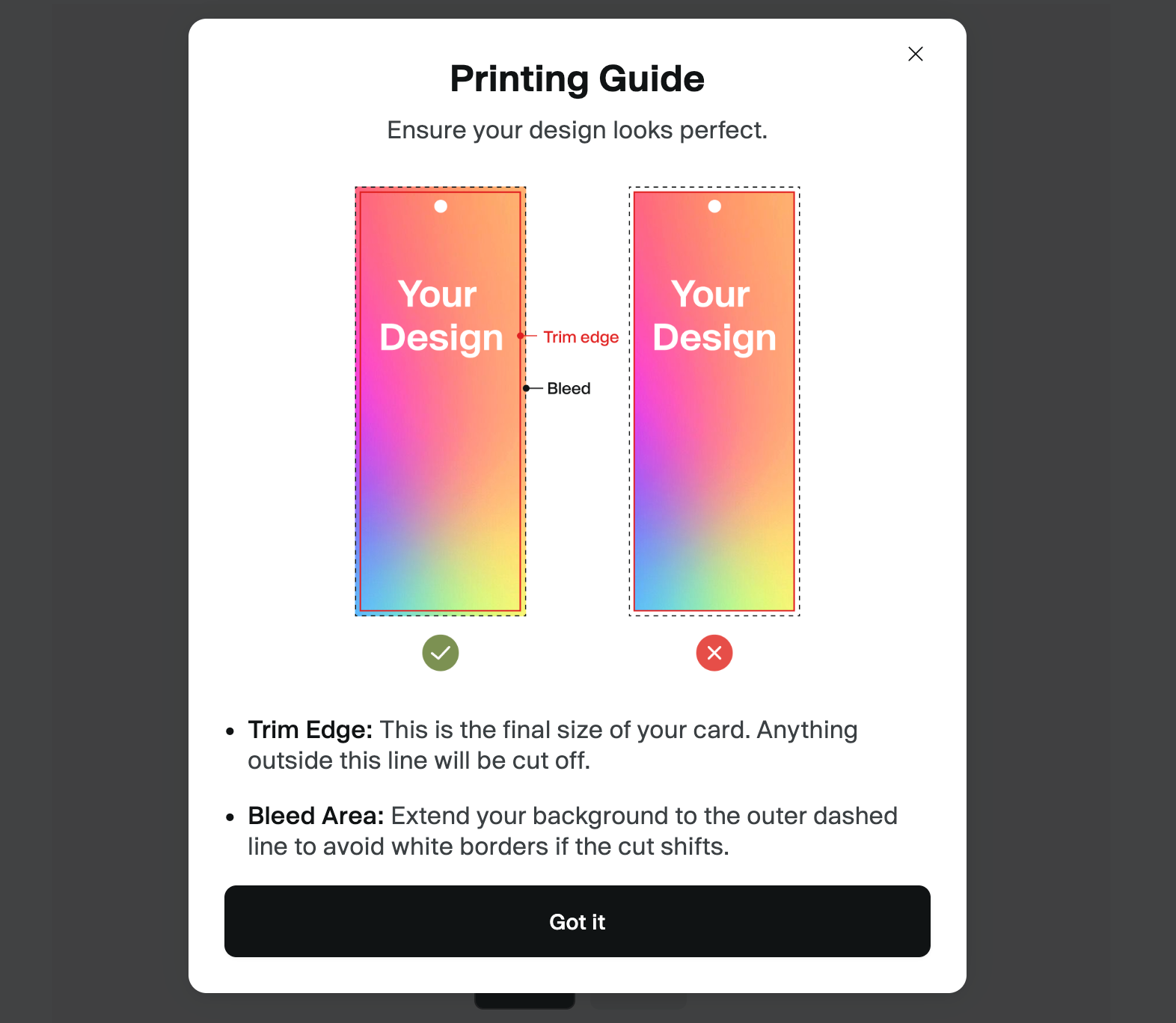
Hangtags include a 3mm bleed area to allow for cutting tolerance. To ensure the best final result, please follow these guidelines:
- Safe Area: Keep logos and important text within the safe area.
- Full Bleed: Extend background colors fully to the edges to avoid unwanted white borders.
- Margins: We recommend allowing sufficient margins when placing key elements.
✅ Review Process
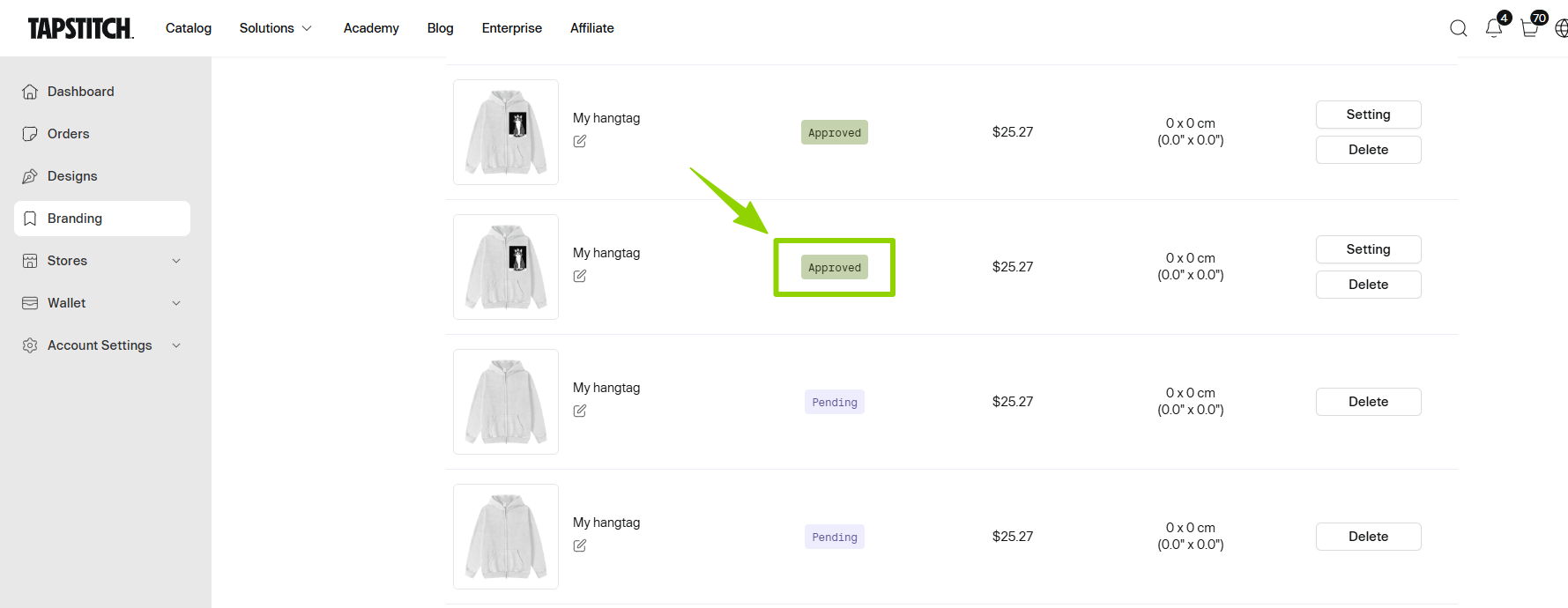
After saving your design, your hangtag will enter the review process. Once approved, you will receive an email notification, and the status in your Hangtag list will update to Approved. Following approval, the hangtag can be applied to your products and used for ordering.
🧷 How to Apply a Hangtag
Once your hangtag is approved, you can choose to apply it during product creation or before placing an order.
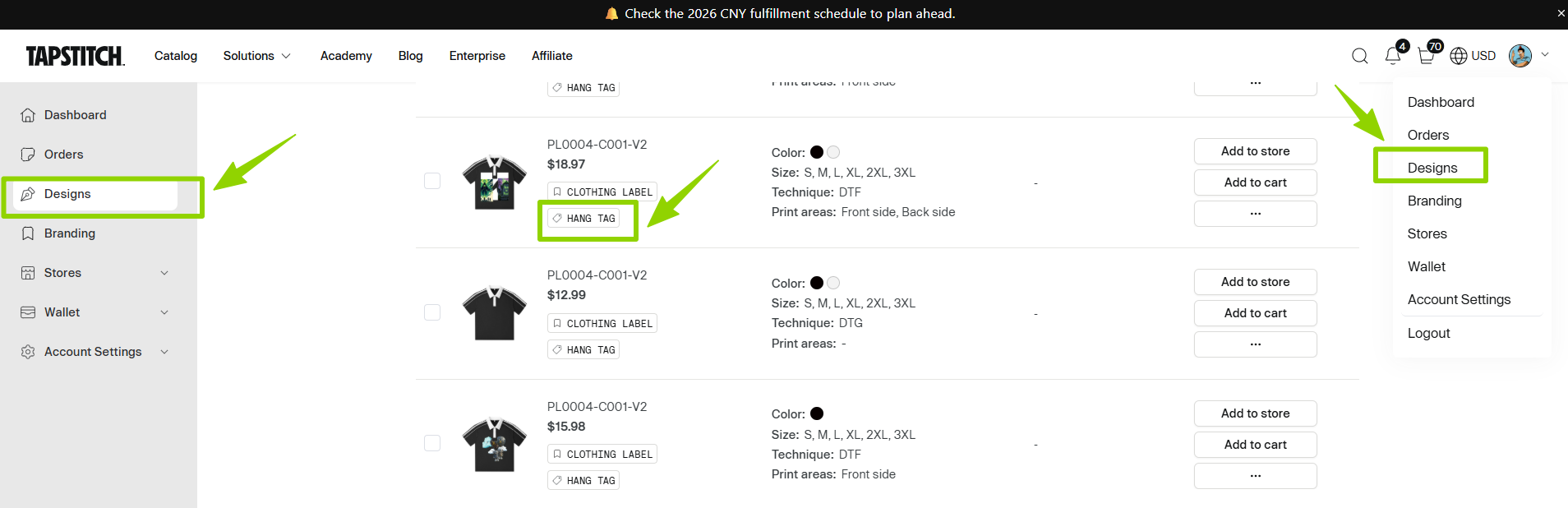
On the Design Page
- Open a design
- Click Branding
- Select Hang Tag
- Choose your hangtag and confirm
You will see the message: Changes saved. The selected hangtag will then be applied to that design for future orders.
In Cart or Branding
You can also apply or modify hangtag settings in the following locations:
- Cart
- Draft orders
- On-hold orders
- Checkout
Steps:
- Click Branding under the product
- Select Hangtag
- Confirm your selection
If changes are made at the order level, the order settings will determine production.
❓ FAQ
1. How long does the review process take?
After submission, your hangtag enters the review process. You will receive an email once it is approved, and the status will update to Approved in your Hangtag list.
2. Can I edit an approved hangtag?
No. After a hangtag is approved, editing is no longer available. If any updates are needed, please remove the approved design and create a new one.
3. Will deleting a hangtag affect existing paid orders?
No. Deleting a hangtag removes it from future use but does not impact orders that have already been placed and paid.
5. Can one product have multiple hangtags?
Currently, each design can be associated with one hangtag.
6. Are hangtags available for all products?
Some specific products may not support branding options. If hangtags are unavailable for a product, a notice will appear on the page.
7. Are hangtags supported for US fulfillment orders?
Currently, hangtags are not available for orders fulfilled through US fulfillment. If branding options are supported for a product, they will be indicated on the product page.
8. Can I add a hangtag after placing an order?
Hangtags and other brandings must be submitted at the time the order is placed. Once an order has been submitted, we are unable to add hangtags to that order. To ensure your branding is included, please upload and select your hangtag during the order creation process.
9. How are hangtags priced?
Hangtags are charged per garment and only incur costs when included in an order. If no hangtag is selected, no additional fee will be applied. All branding-related costs will be clearly displayed at checkout.
Was this article helpful?
89 found this helpful