What Can You Do with Layouts?
August 20, 2026 · Updated
Recreating the same logo placement or design arrangement on every product takes time.
Save it as a layout. Apply it to any new product, and it'll keep the same relative position and size.
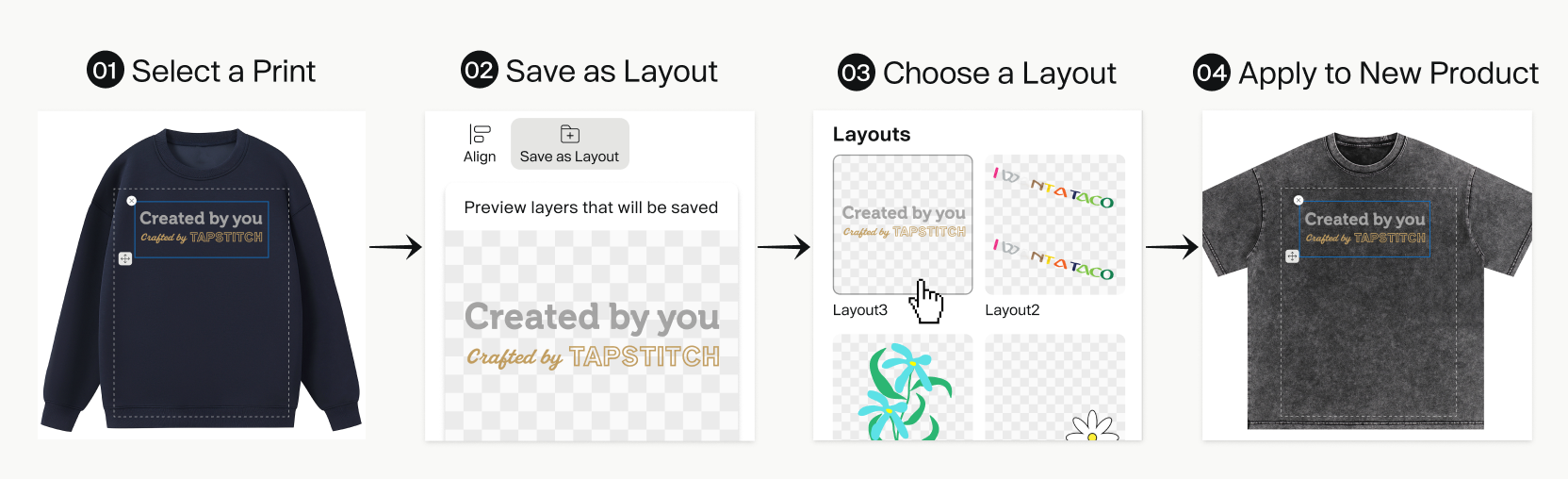
How to Use It
- Select any layer of your design.
- Hover over Save as Layout on the top bar to see a preview, then click to save.
- Open a new product and apply the layout.
- Double-click any image on the garment to replace it.
Tips
- Use clear names based on your design theme or logo placement, such as "Vintage Floral Series" or "Left Chest Logo," so you can quickly find and reuse the right layout later.
- To update a layout, apply it to the canvas, make your changes, and save it as a new layout.
FAQs
1. Why can’t I see my saved Layouts after switching techniques?
Embroidery and non-embroidery Layouts are saved separately because they use different production file types. When you switch techniques, only Layouts compatible with the selected technique are shown.
Your other Layouts are not deleted. They’ll appear again when you switch back to the technique they were created for.
2. Why can’t I use an Embroidery Layout on a smaller embroidery frame?
No. Embroidery Layouts keep the original size of their design elements based on the font size used when the Layout was saved. They do not automatically scale down to fit a smaller embroidery frame.
As a result, an Embroidery Layout cannot be applied to an embroidery area that is smaller than the one it was originally created for.
3. How do non-embroidery Layouts adapt to different design areas?
Non-embroidery Layouts save the relative size and position of each design element within the design area.
When you apply a Layout to another compatible design area, the elements are adjusted proportionally to recreate the same overall composition and positioning.
Was this article helpful?
21 found this helpful