How to Use AI Design
October 15, 2026 · Updated
AI Design is a new feature within the design tool that lets users browse AI-generated print templates and create custom visuals using simple text prompts.
Explore our large collection of professionally designed templates for prints, graphics, posters, logos, and more, then customize or generate new designs in seconds:
1. Generate Prints with AI Templates
Quickly create polished, professional designs using built-in AI templates. Browse a range of curated layouts and art styles to generate custom prints in just a few clicks!
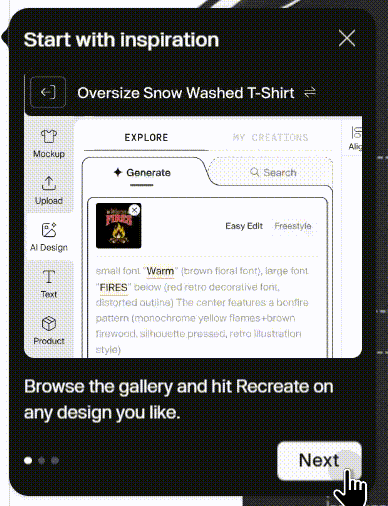
Here's how to get started:
- Browse the AI template gallery.
- Select a design style or sample you like.
- Click Generate.
 4. Edit the highlighted keywords to change parts of your design. You can change:
- Slogans or text
- Objects within the image
- Themes, aesthetics, or art styles
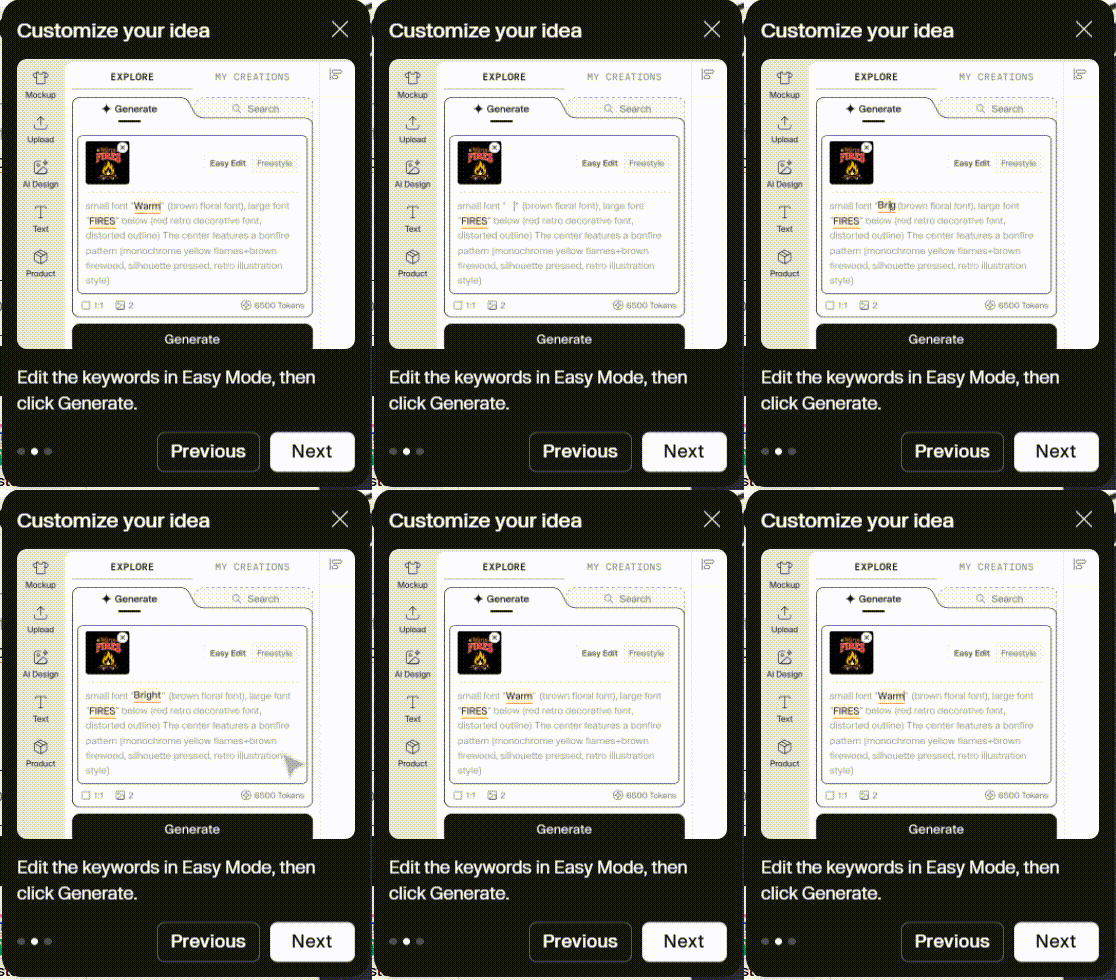
- The tool will generate a new design with a similar composition and visual style.
Easy Edit & Freestyle Mode
The default option is the Easy Edit mode, allowing you to quickly customize highlighted keywords and generate new variations with minimal effort. For more flexibility and creative freedom, switch to Freestyle mode to write and edit full AI prompts for fully customized results.
2. Generate Images with Prompts
Create original designs by entering your own AI prompts. Describe the style, subject, text, or visual direction you're going for, and the AI will generate custom design concepts in seconds.
Steps
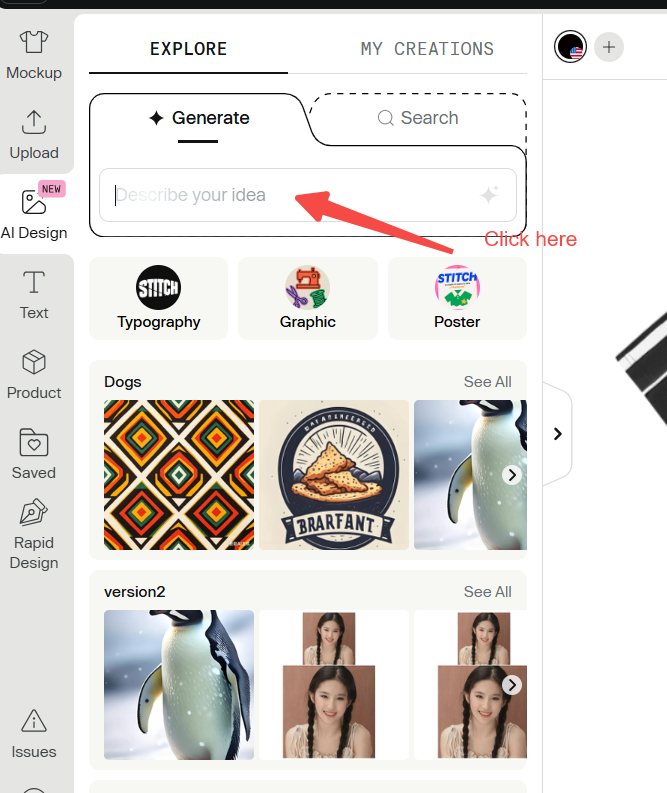
- Click the prompt input area.
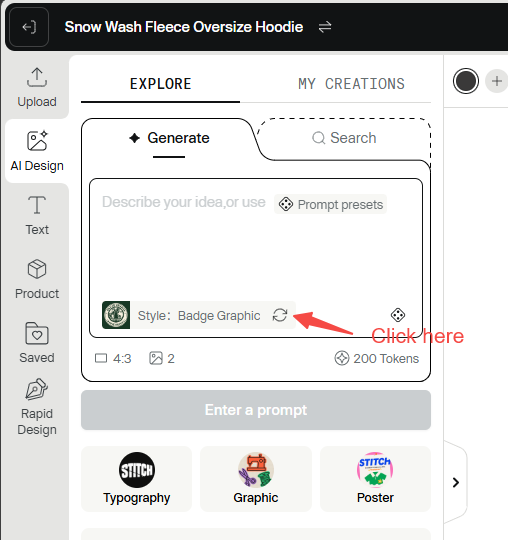
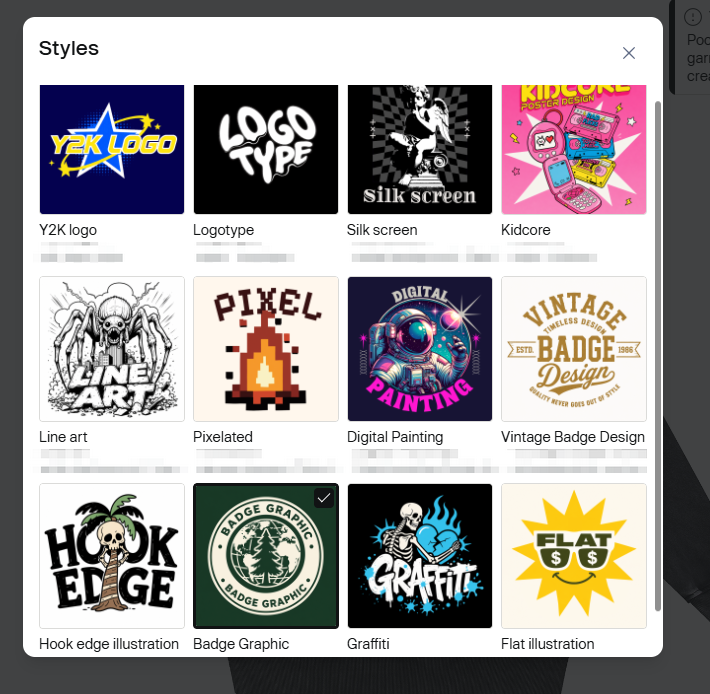
- Choose an art style you like.
- Enter a description of the design you want to create.
- Use Prompt Presets for inspiration, then customize them to match your vision.
Pro tip: Details matter! More detail in your prompt helps the AI get closer to what you're looking for. You can describe things like:
- Subjects and colors
- Visual styles
- Composition and placement
- Text or slogans
- Mood and visual atmosphere
3. Important Notes for DTF Printing
The original images generated by AI Design include a solid-color background. Before you use the images, the background will be removed to prepare the artwork for production. Because of this process, some generated images may contain:
- Feathered edges
- Semi-transparent edges
- Soft or blurry outlines
These types of edges are not suitable for DTF printing and may affect print quality.
Recommendations for DTF Use
To achieve the best DTF printing results:
- Choose templates with clean, well-defined edges, such as badge-style or geometric designs.
- Zoom in and inspect the artwork edges carefully after generation.
- Make sure outlines appear sharp, solid, and fully opaque.
- Avoid designs with transparent, feathered, or blurry borders.
- This helps ensure better DTF printing results and reduces the risk of edge-quality issues during production.
Carefully reviewing image edges before production helps ensure cleaner prints and reduces the risk of edge-quality issues during transfer.
4. Feedback & Suggestions
If you encounter any issues or have suggestions for improvement, you can submit feedback through the Feedback button located in the bottom-right corner of the design tool:
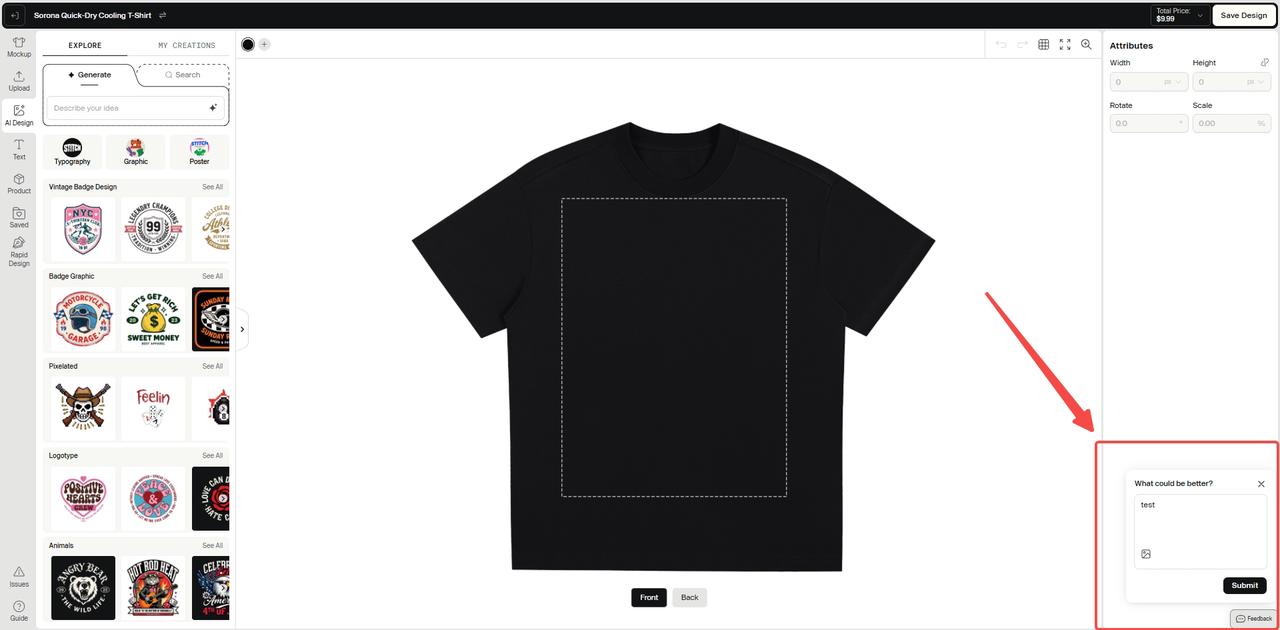
When submitting feedback, you can also attach screenshots to help us better understand the issue or suggestion. We’re continuously improving the AI Design experience and value your feedback as we expand the feature.
Your feedback is crucial in helping us improve the tool and make it better and more useful for you. Thank you for your support!
Was this article helpful?
15 found this helpful