How to Associate Multiple Designs with Different Variants in the Same Product Listing?
September 20, 2026 · Updated
Overview
Tapstitch allows you to associate different designs with different variants (color and size) within the same store product listing.
For example:
| Variant | Design |
| Black / S | Design A |
| White / S | Design B |
| Pink / M | Design C |
Customers can switch between colors or sizes on your store page to view different designs. Orders will automatically match the correct Tapstitch product for fulfillment.
How to Set Up Multiple Designs
Step 1: Create Your Designs
- Go to Catalog and select a product.
- Click Design Now.
- Upload your artwork and complete the design.
- Select the required colors.
- Click Publish.
Make sure all designs you want to use have been created before updating variants.
Step 2: Publish the Product to Your Store
- Select your connected store.
- Set product information:
- Title
- Description
- Price
- Submit the product.
The product will appear in: Products → My Products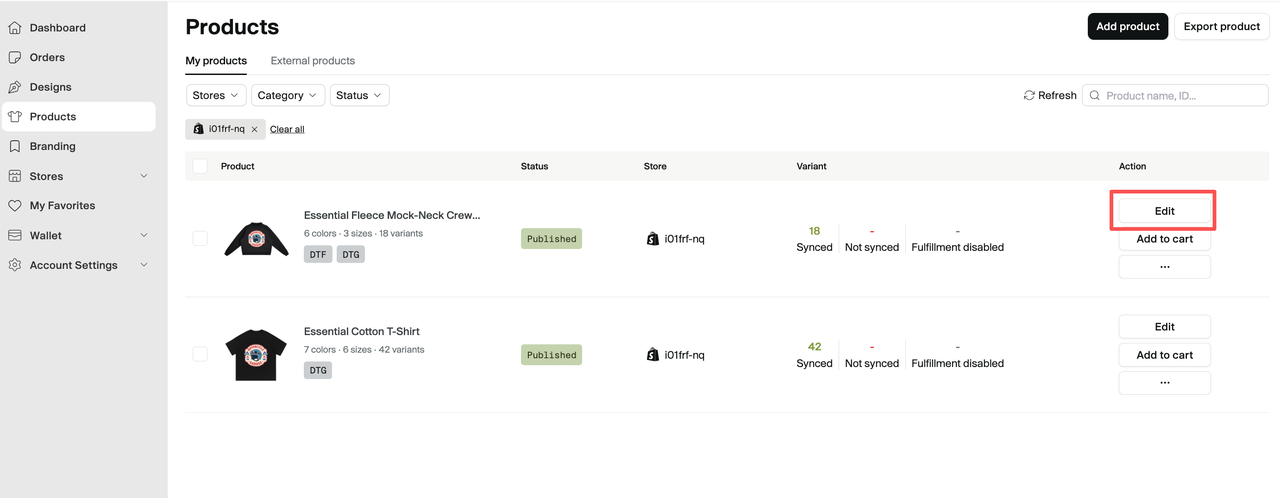
Step 3: Replace or Add Designs to Variants
- Go to: Products → My Products → Edit
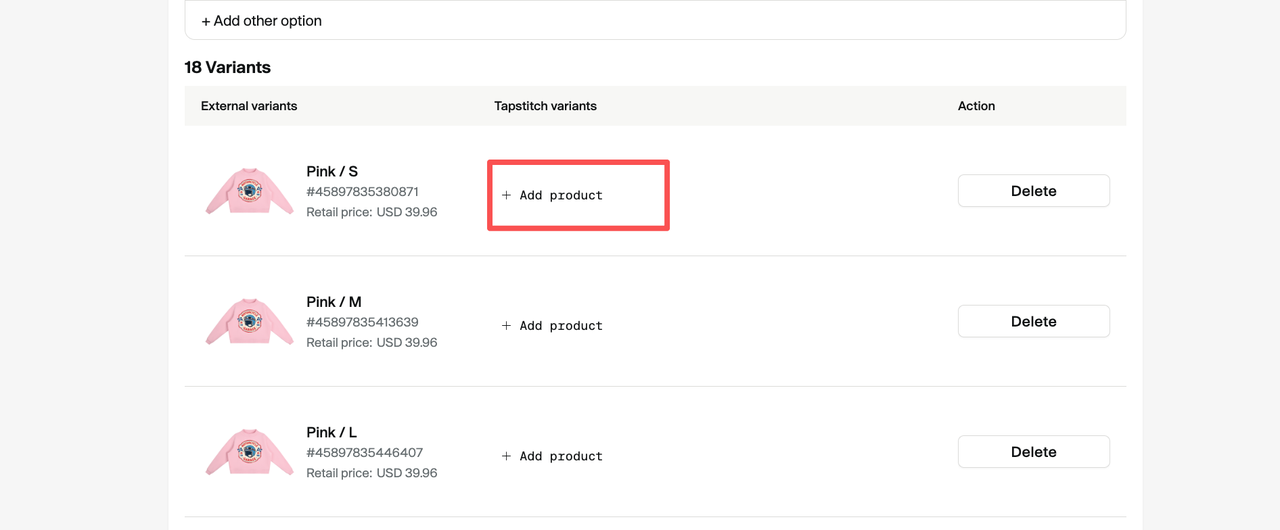
- Find the variant you want to update.
Example:
| Store Variant | Current Design |
| Black / S | Design A Black / S |
- Remove the existing Tapstitch product association.
- Click: Add Product
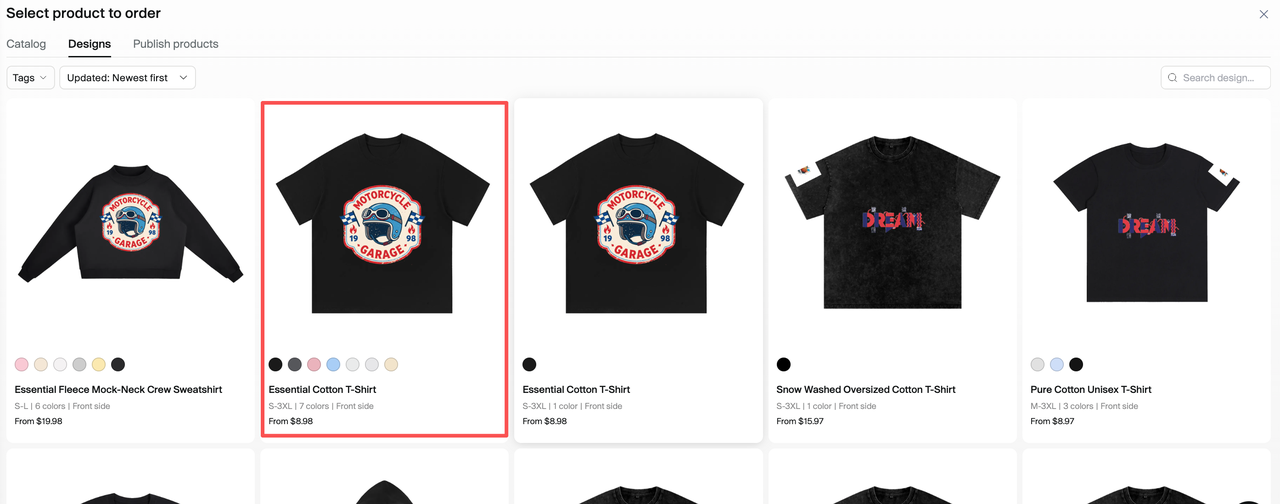
- Select the new design from: Designs
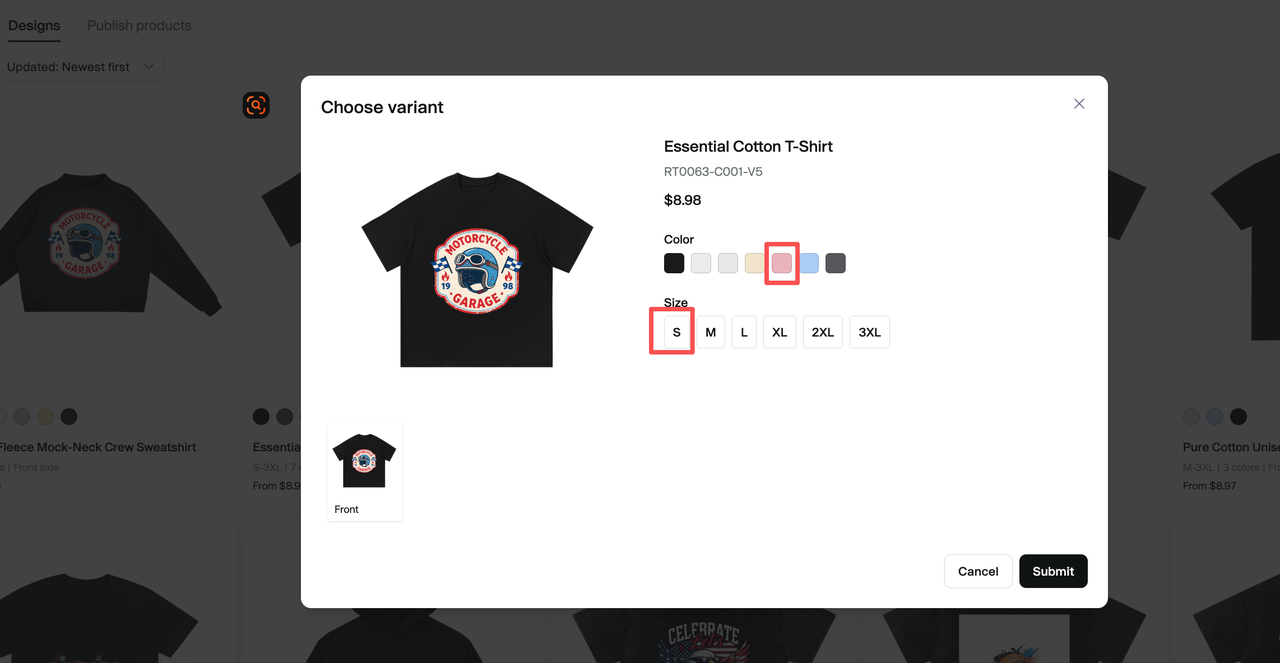
- Choose the matching color and size.
Example:
| Store Variant | Associated Design |
| Black / S | Design A Black / S |
| Pink / S | Design B Pink / S |
| White / M | Design C White / M |
- Click Submit.
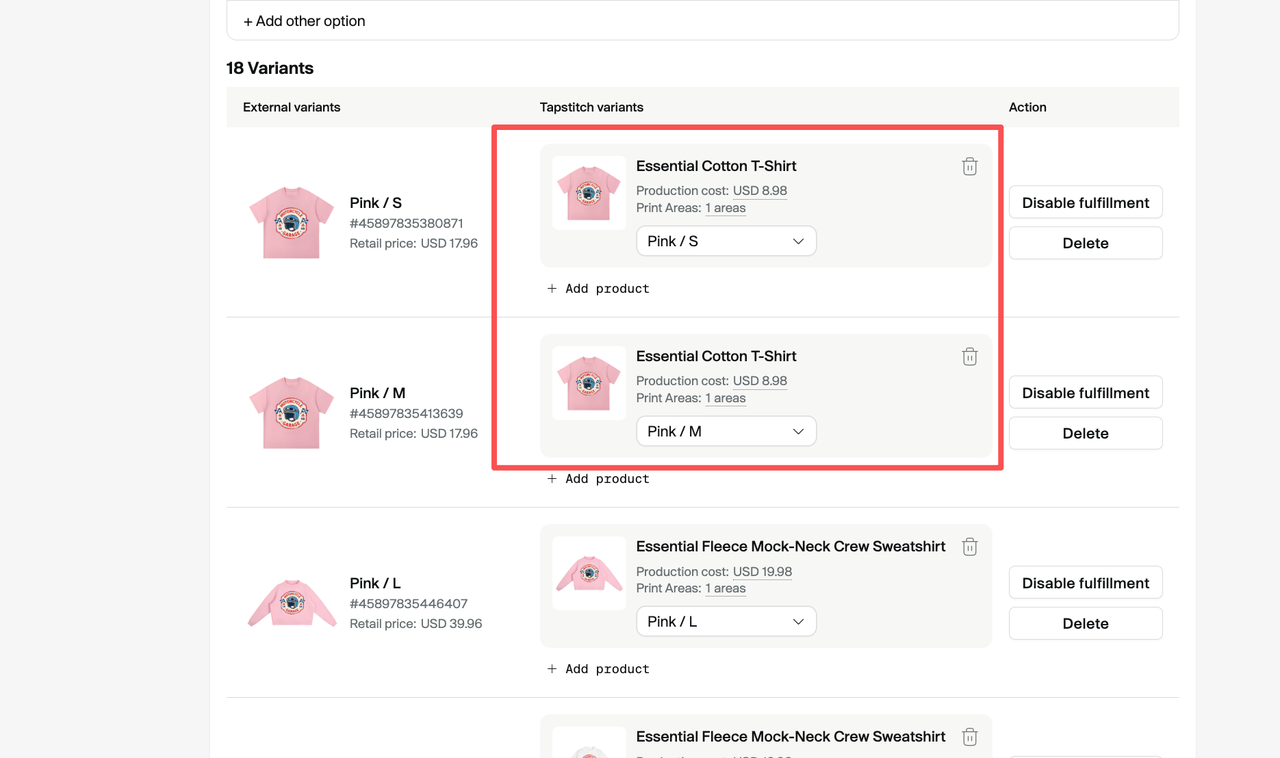
Step 4: Sync Changes to Your Store
- After checking that each variant is linked correctly: Click: Submit to Store
- The updated product configuration will be synced to your store.
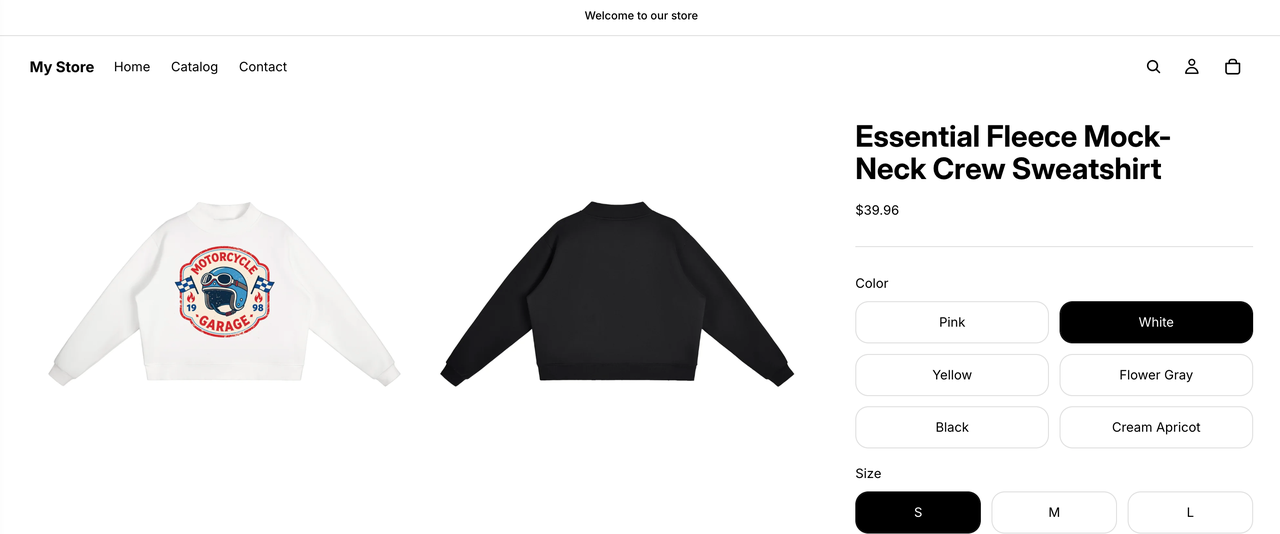
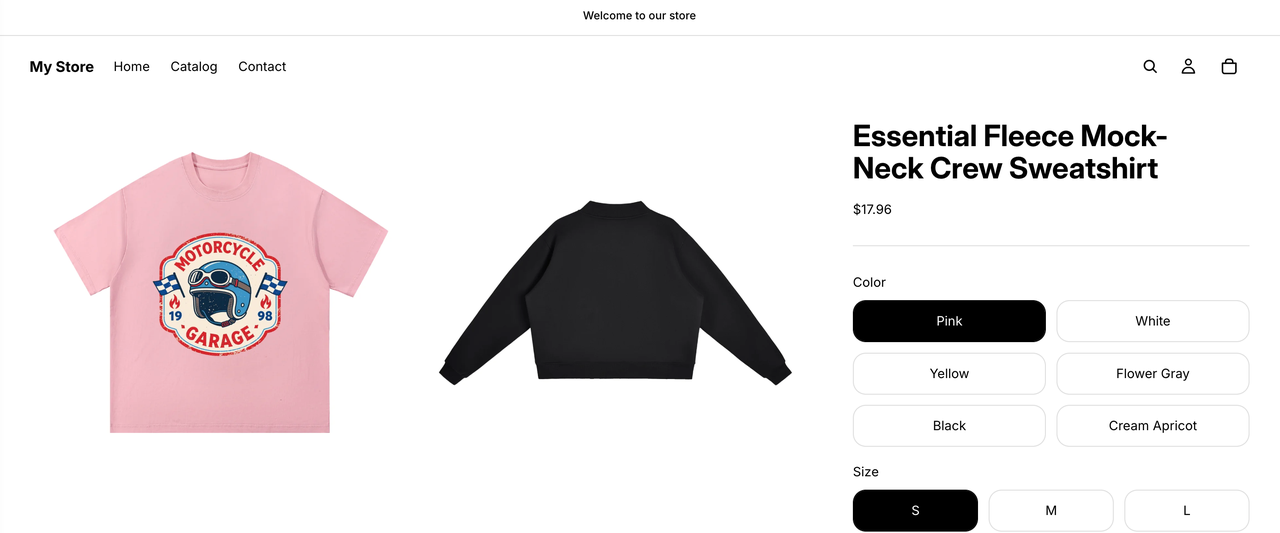
Verify Your Store
Open your product page and check:
- Different colors display the correct designs
- Different sizes are linked to the correct products
When customers place an order, Tapstitch will automatically identify the selected variant and fulfill the corresponding product.
Important Notes
1. Create Designs Before Updating Variants
New designs must already exist in: Designs → Published Products before they can be added to variants.
2. Keep Variant Information Consistent
Make sure the variant information matches between your store and Tapstitch.
Example:
| Store Variant | Associated Design | |
| Black / S | Design A Black / S | ✅ |
| Black / S | Design A Black / L | ❌ |
Incorrect mappings may affect order matching.
3. Sync After Changes
- Changes made in Tapstitch will not update your store automatically.
- Always click: Submit to Store after updating variant associations.
Was this article helpful?
1 found this helpful