How can I connect my Shopify store to Tapstitch?
August 07, 2026 · Updated
Connecting your Shopify store to Tapstitch allows you to publish products, sync orders, and manage fulfillment through Tapstitch. You can connect your store in either of the following ways:
- Method 1: Start from your Tapstitch account
- Method 2: Install Tapstitch from your Shopify admin
Before you begin
Make sure that:
- You have an active Shopify store.
- You have permission to install apps for the Shopify store.
- You have an existing Tapstitch account or an email address you can use to create one.
- You are signed in to the correct Shopify store before starting the installation.
Option 1: Connect Shopify from Tapstitch
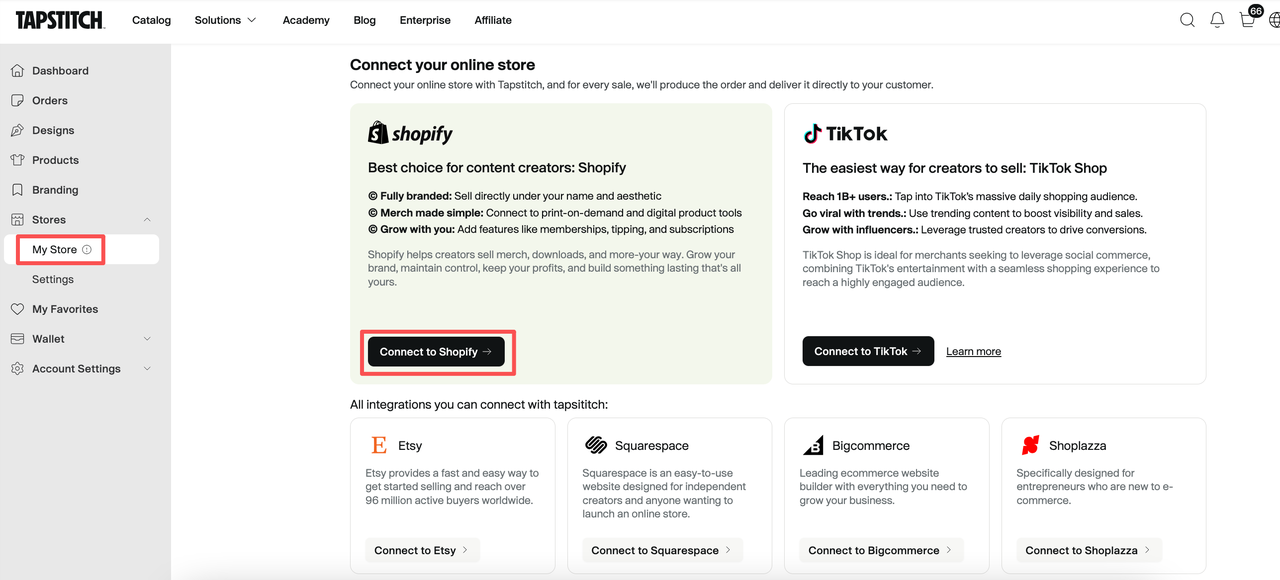
Step 1: Open the store connection page
- Sign in to your Tapstitch account.
- From the left-hand menu, go to: Stores → My Store
- Click Connect to Shopify.
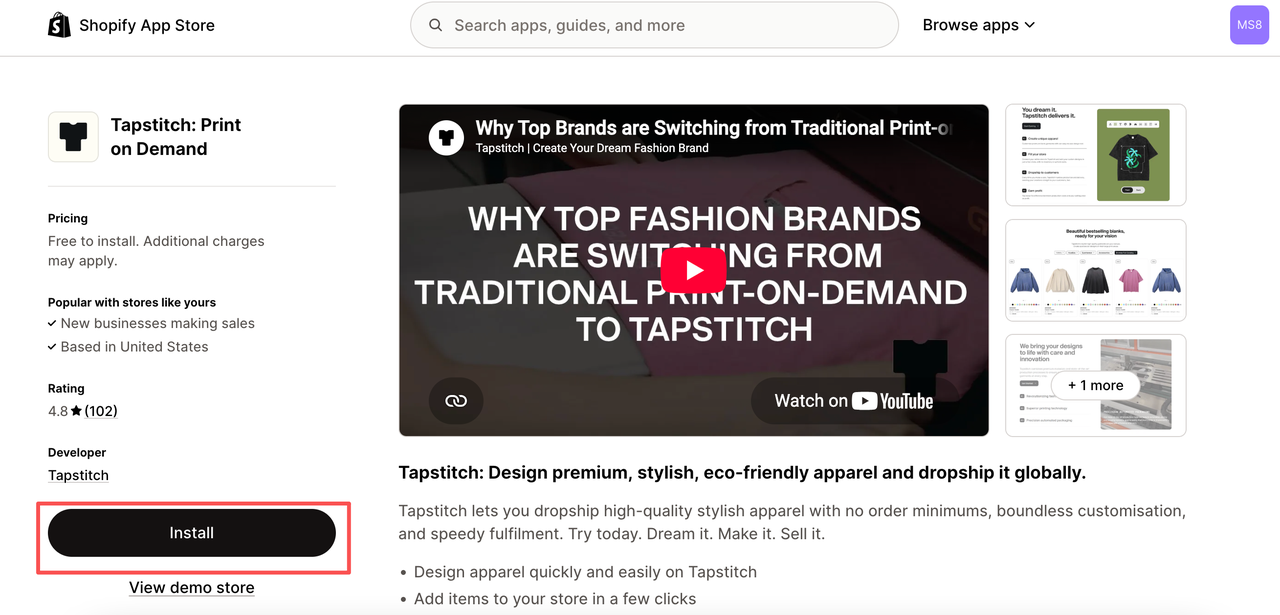
Step 2: Open the Tapstitch app listing
- You will be redirected to the Tapstitch listing in the Shopify App Store.
- Confirm that the app is published by Tapstitch, and then click Install.
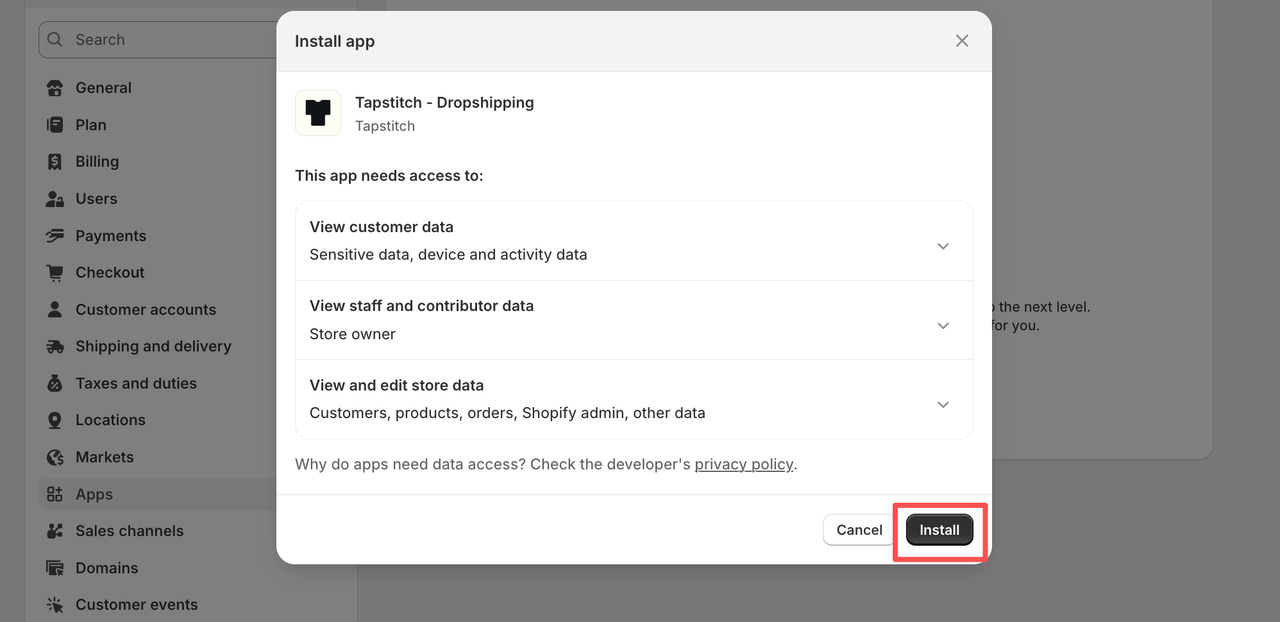
Step 3: Approve the requested permissions
- Shopify will display the permissions required by Tapstitch.
- Review the requested access and click Install to continue.
- Tapstitch requires these permissions to manage connected-store functions such as products, orders, inventory, customers, and fulfillment information.
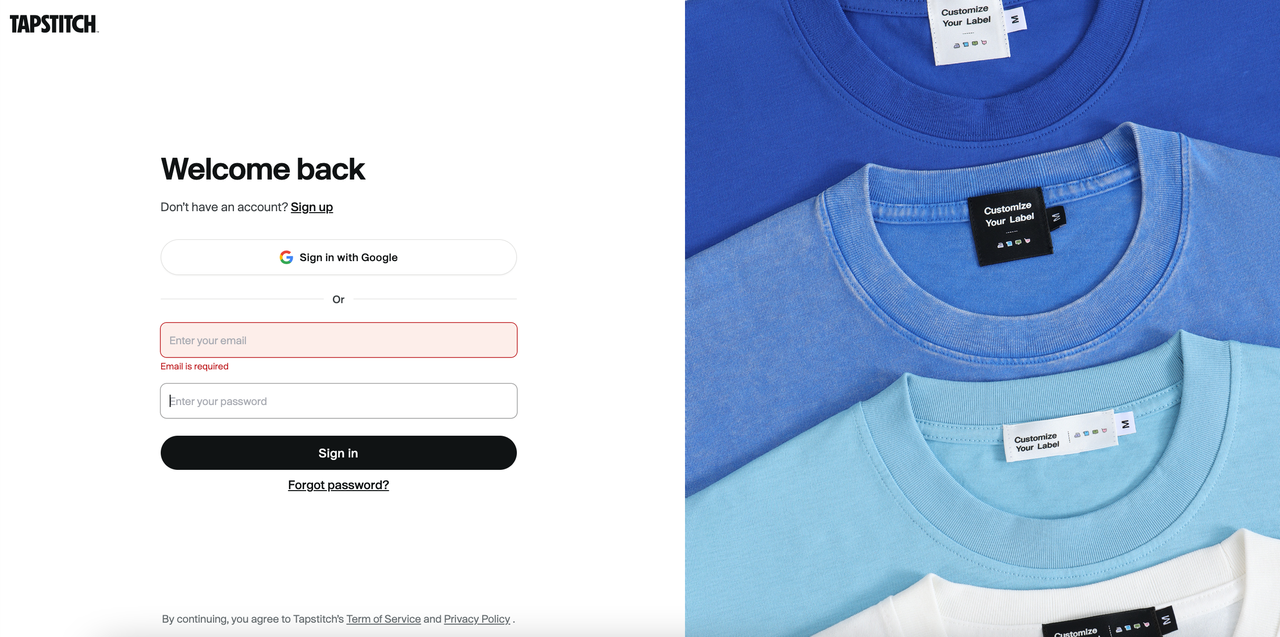
Step 4: Sign in to Tapstitch
- After the installation is approved, you will be redirected to Tapstitch.
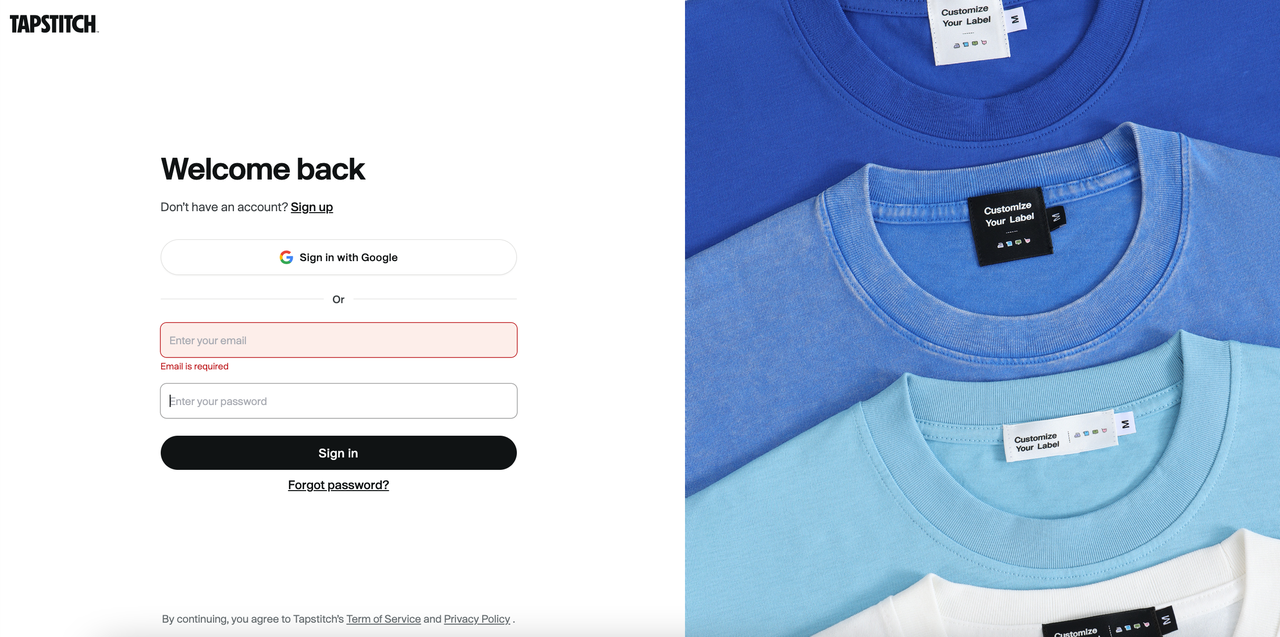
- Sign in using your Tapstitch email and password, or select Sign in with Google.
- If you do not have a Tapstitch account, click Sign up to create one.
Option 2: Install Tapstitch from Shopify
You can also start the connection directly from your Shopify admin.
Step 1: Open the Shopify App Store
- Sign in to your Shopify admin.
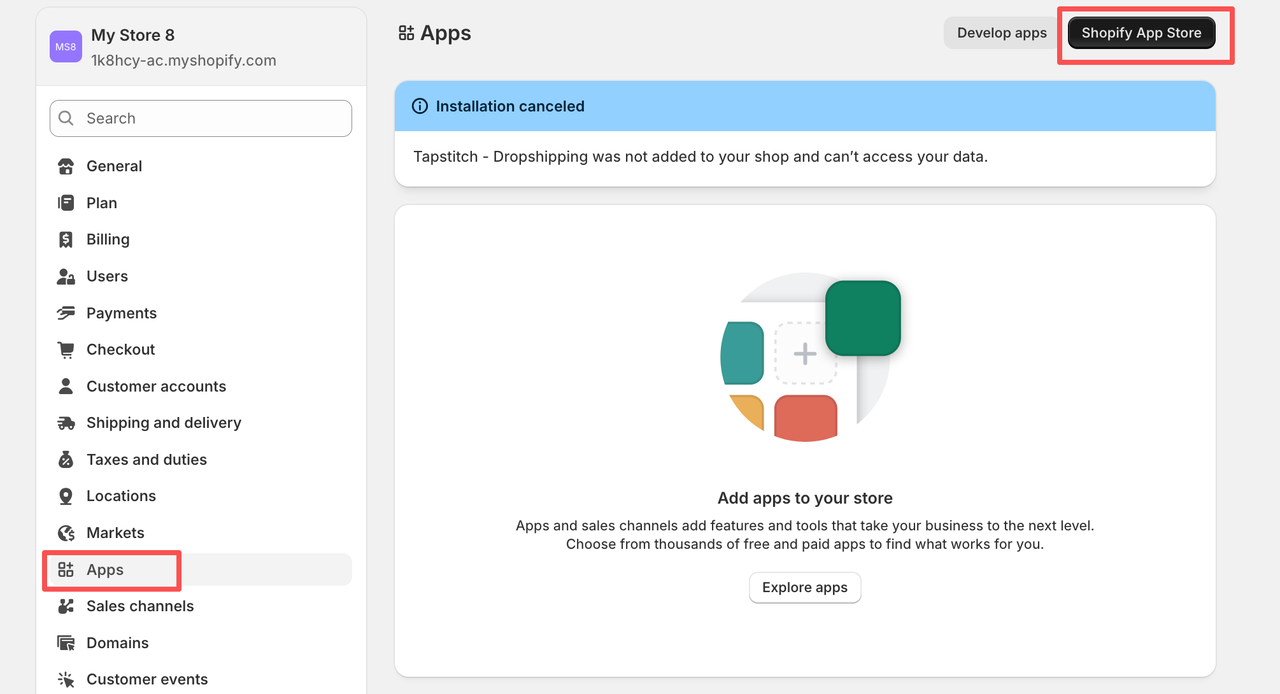
- From the left-hand menu, select Apps, and then click Shopify App Store.
Step 2: Search for Tapstitch
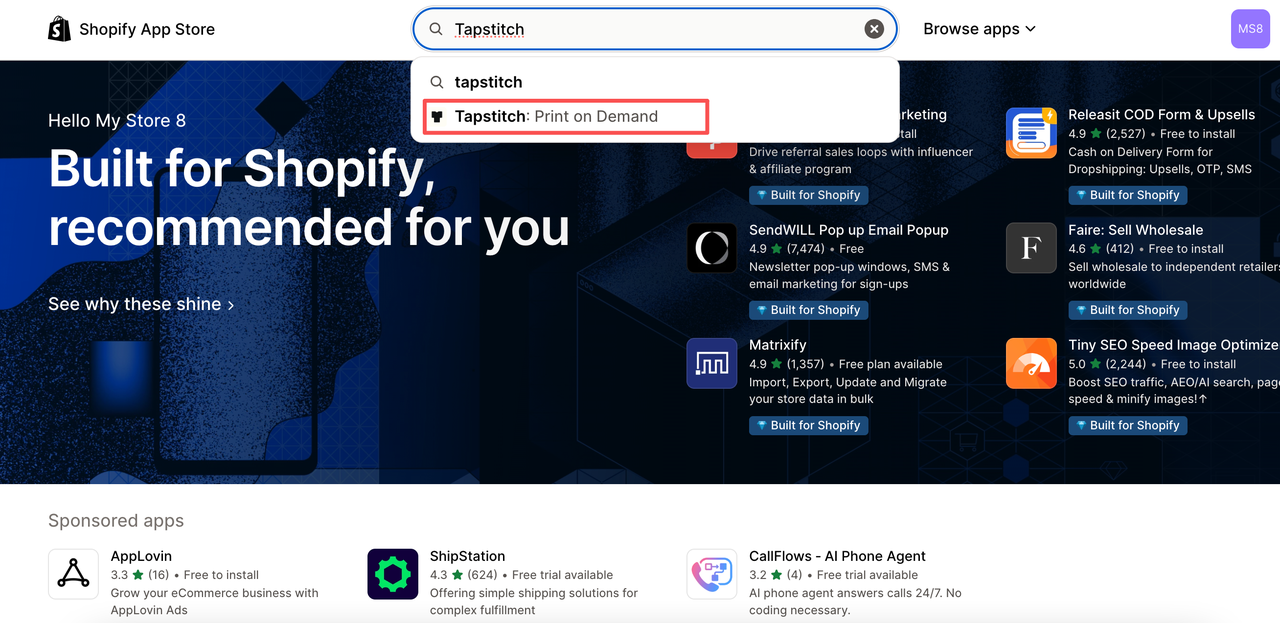
- Enter Tapstitch in the Shopify App Store search bar.
- Select Tapstitch: Print on Demand from the search results.
- Before continuing, confirm that the app developer is Tapstitch.
Step 3: Install the Tapstitch app
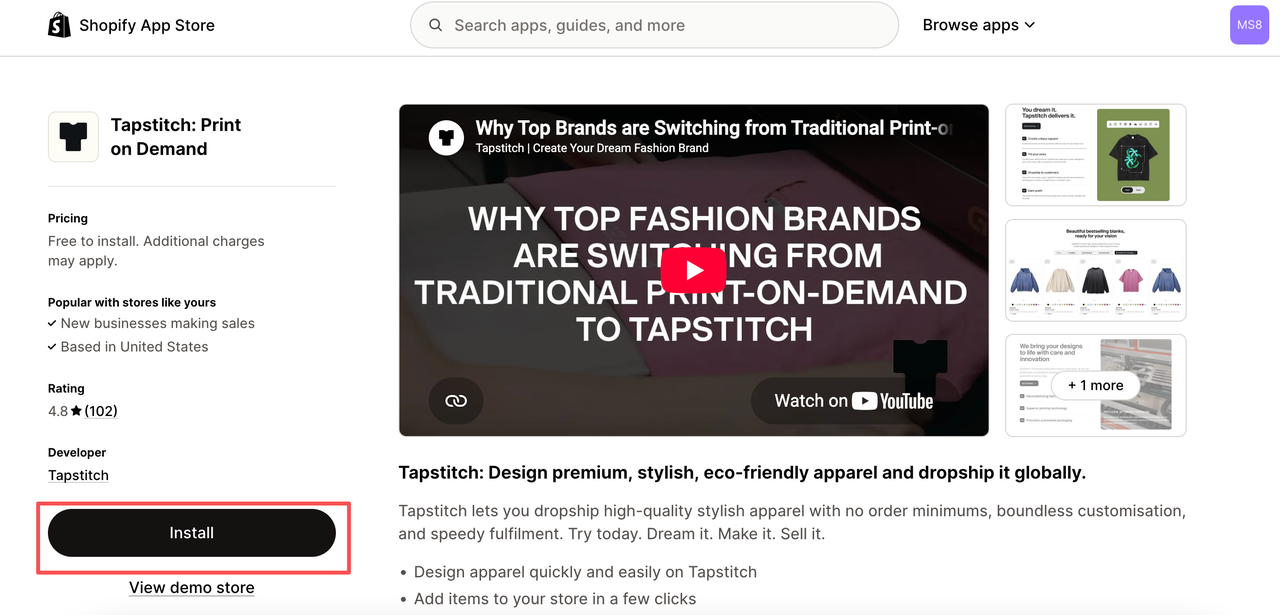
On the Tapstitch app listing page, click Install.
Step 4: Approve the requested permissions
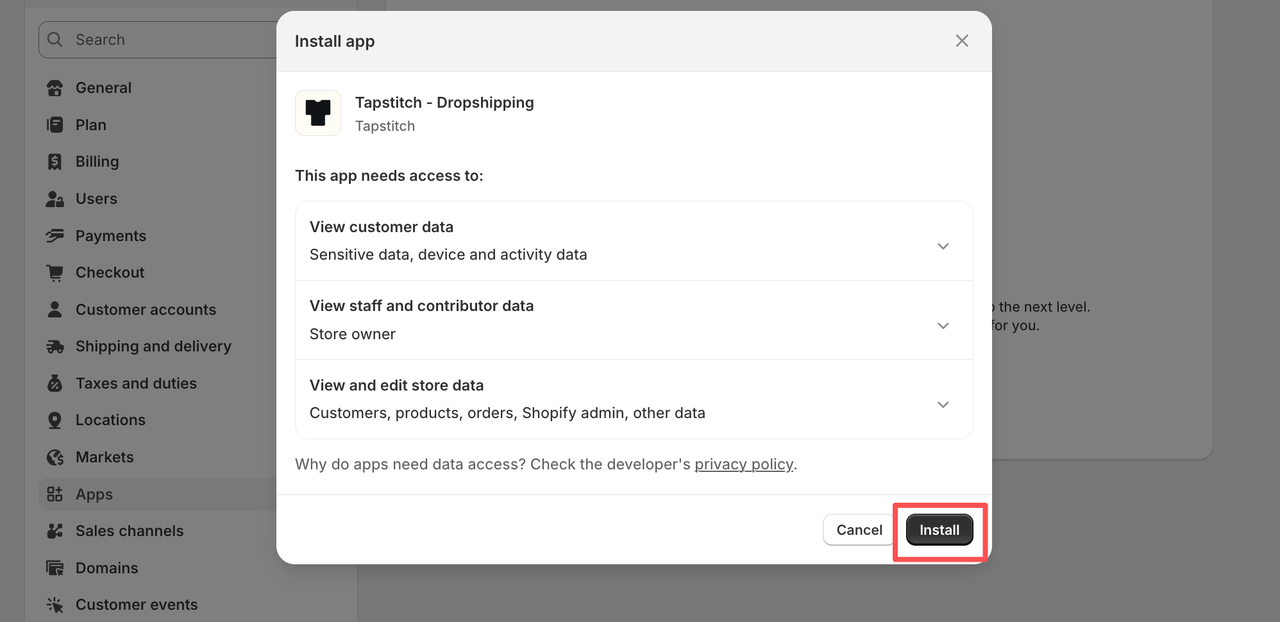
- Review the permissions requested by Tapstitch, and then click Install in the Shopify authorization window.
- Do not close the page or click Cancel while the installation is being processed.
Step 5: Sign in or create a Tapstitch account
After installation, Shopify will redirect you to Tapstitch.
- Sign in with your existing Tapstitch account.
- Select Sign in with Google if applicable.
- Click Sign up if you are new to Tapstitch.
Tapstitch will then associate the Shopify store with your account.
Confirm the connection
After signing in, return to: Tapstitch → Stores → My Store. Your Shopify store should appear in the store list with its current connection status. Before publishing products, confirm that:
- The correct Shopify store is displayed.
- The store status shows as connected or active.
- There are no authorization or permission warnings.
Was this article helpful?
8 found this helpful