Editing and modifying designs
October 15, 2026 · Updated
I uploaded the wrong image and would like to change it, but I have already placed an order, can I redo the design?
If you would like to change the print, please contact customer service at support@tapstitch.com.
How do I remove the background from my images?
For best results, please remove the image background if it's not an essential part of your design. You can use our Product Creator's background removal tool or an image editing program to do this.
Background removal tool in the Design Tool
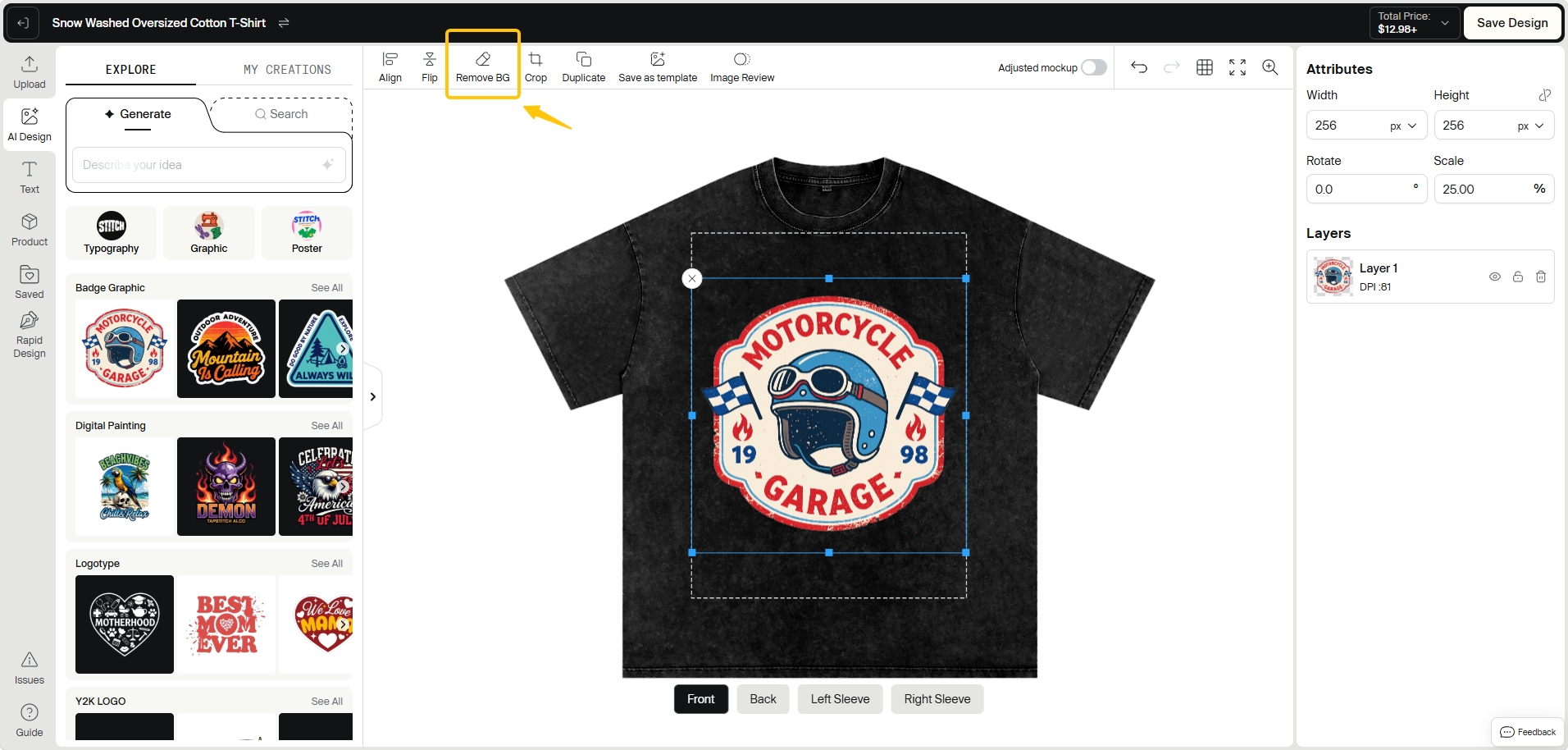
Our design tool includes a background removal feature for JPEG or PNG images. You can click the image and then choose the "Remove BG" option on the top bar for automatic background removal.
The "Remove BG" tool works best with images where the edges of the objects and the background are well-defined. In cases where the edges are less distinct, we recommend using the manual removal tool.
 Other background removal tools
Here are some free alternative options:
Other background removal tools
Here are some free alternative options:
- Adobe Photoshop Express: This is a free online image editor that is perfect for simple images.
- GIMP: It is a free, open-source image editing program that requires installation (find an image removal tutorial here).
- Photopea: This is another free online image editor and an alternative to Adobe Photoshop (image removal tutorial here).
- Fotor: Fotor is an online image editor with a free trial available, serving as an alternative to Adobe Photoshop.
Remove background for better print quality
- If your design has a background similar to the color of the garment – the background will be printed and will look slightly different to the color of the fabric. Make sure that this is the result you are looking for.
- Otherwise, you can use the "Remove Background" tool to remove the background from your design.
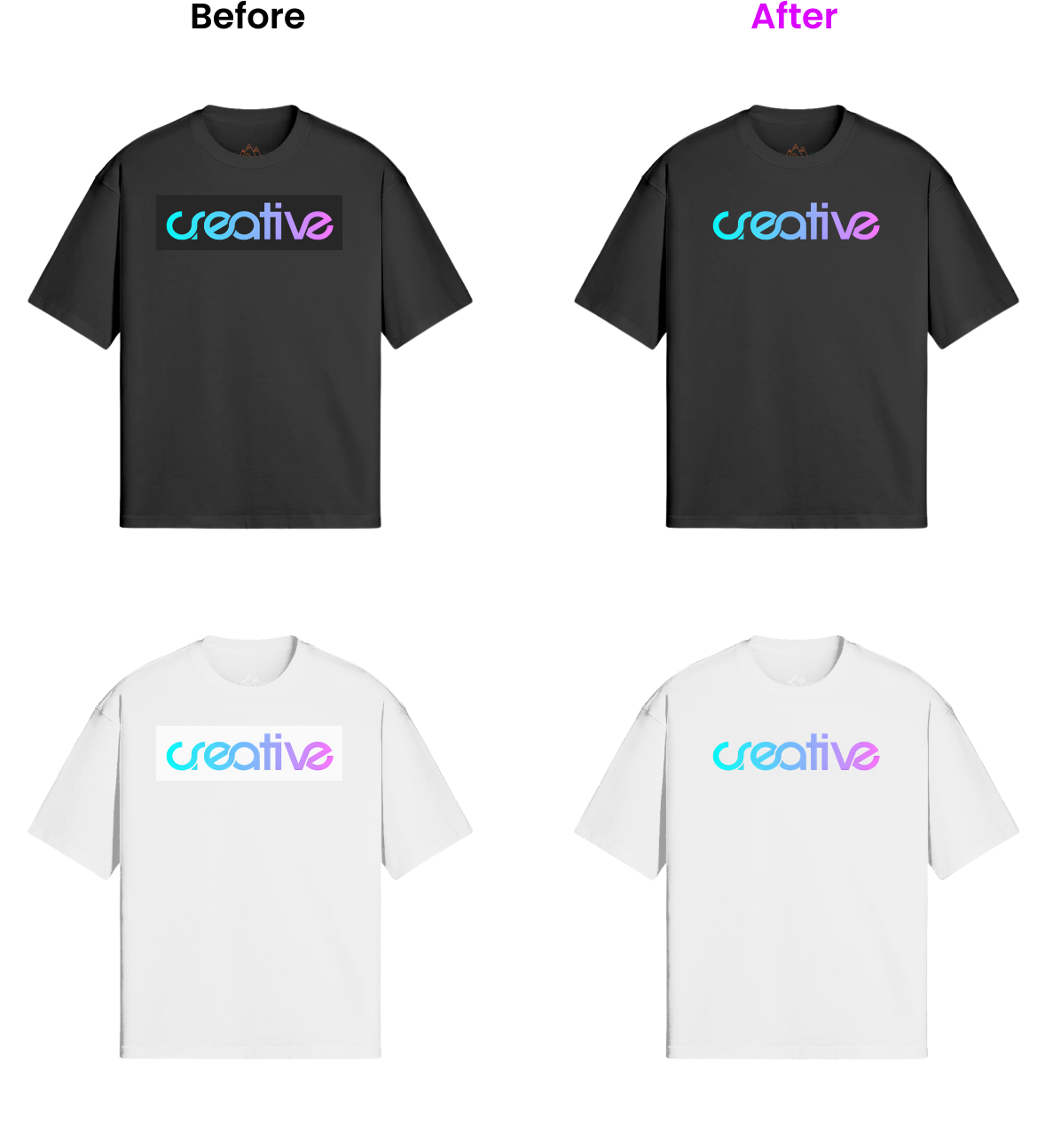
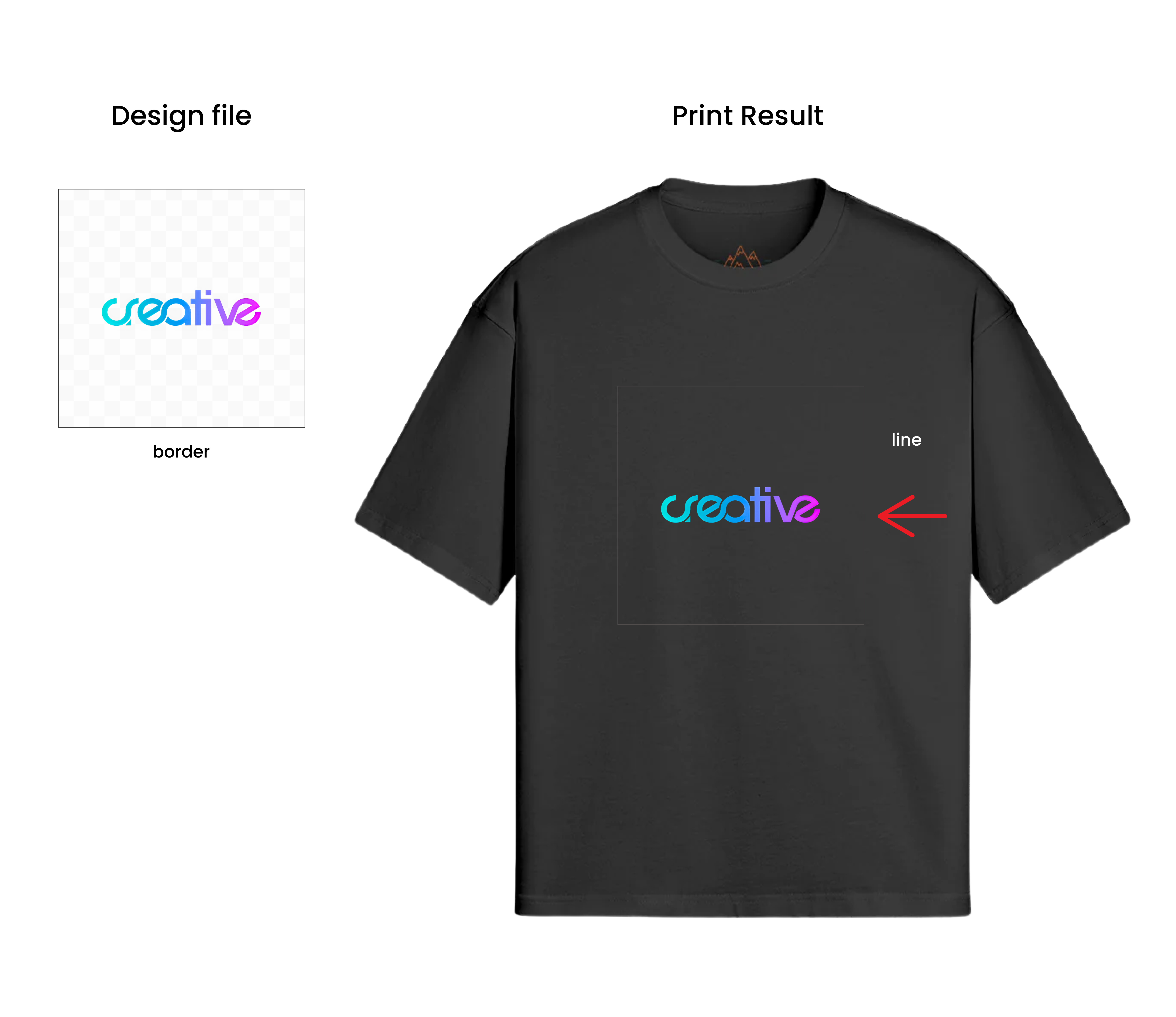
- When you upload your design images, it's important to check for any remaining borders around the edges. If you find any borders, please use software like Photoshop to remove them before submitting the images. This will help ensure that your designs look clean and professional.
Was this article helpful?
200 found this helpful